
Ludoya's messaging system lets you have real-time conversations with other players. Use it to coordinate game nights, negotiate marketplace trades, ask questions, or just chat.
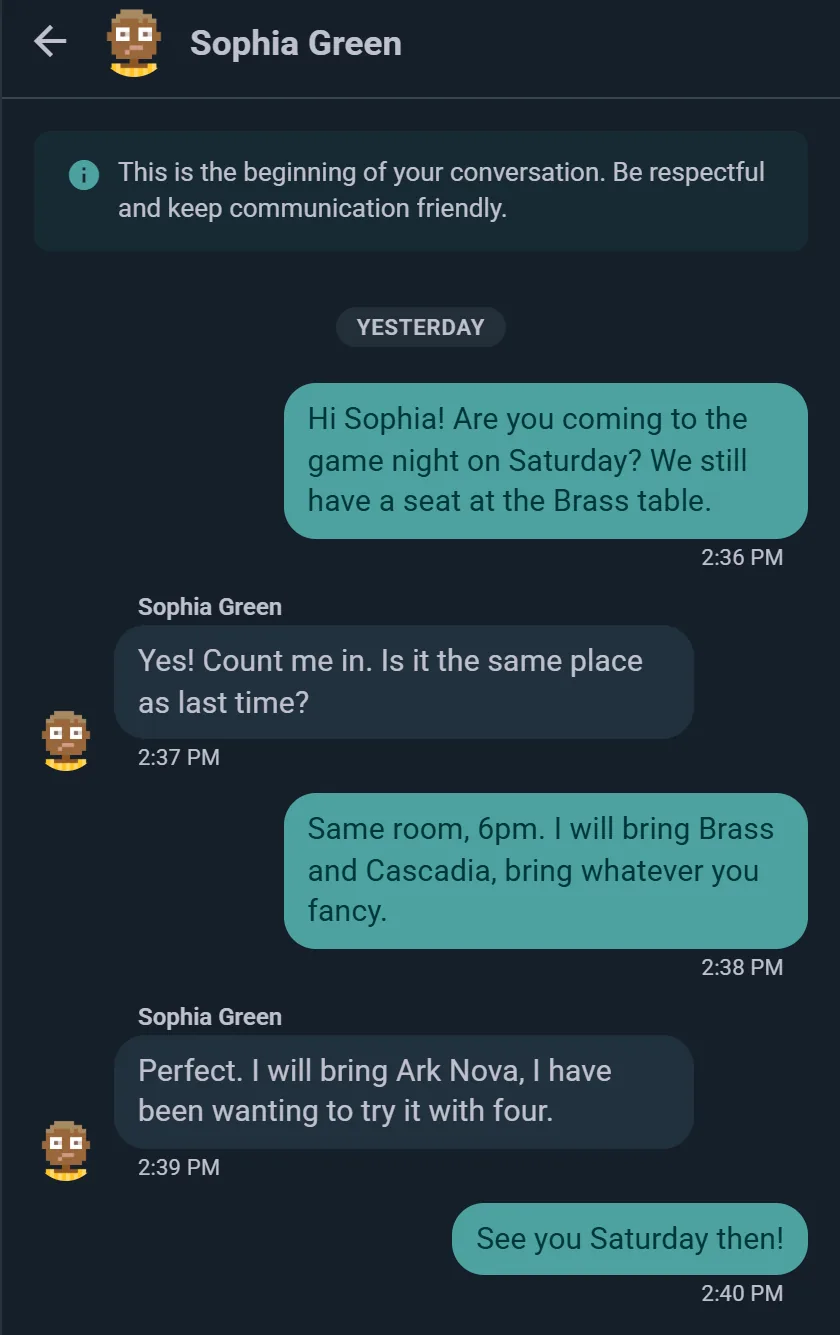
Starting a Conversation
You can start a direct message from several places:
- User Profile: Tap the message icon on someone's profile
- Marketplace: Tap the seller to message them about a listing
- Event games list: message whoever's bringing a particular game
- Messages Tab: Tap the + button to start a new conversation
When you message someone, a real-time conversation thread opens and you can exchange messages instantly.
Group Chats
Pick more than one person in New Message and you start a group instead of a one-to-one chat. Give it a name if you like (up to 80 characters) and a photo; a group holds up to 50 people.
- Add or remove people from the group's info panel. Everyone sees a line in the chat when someone joins, leaves, or the group is renamed.
- Leave whenever you want. If you're removed, you keep the conversation to read, but can't write in it anymore.
- Choose how much it notifies you: every message, only mentions and replies, or muted. Larger groups start quieter; a mention or a reply to you always gets through.
The usual use: the regulars of a Thursday night deciding what to bring, or a few friends planning a weekend of games.
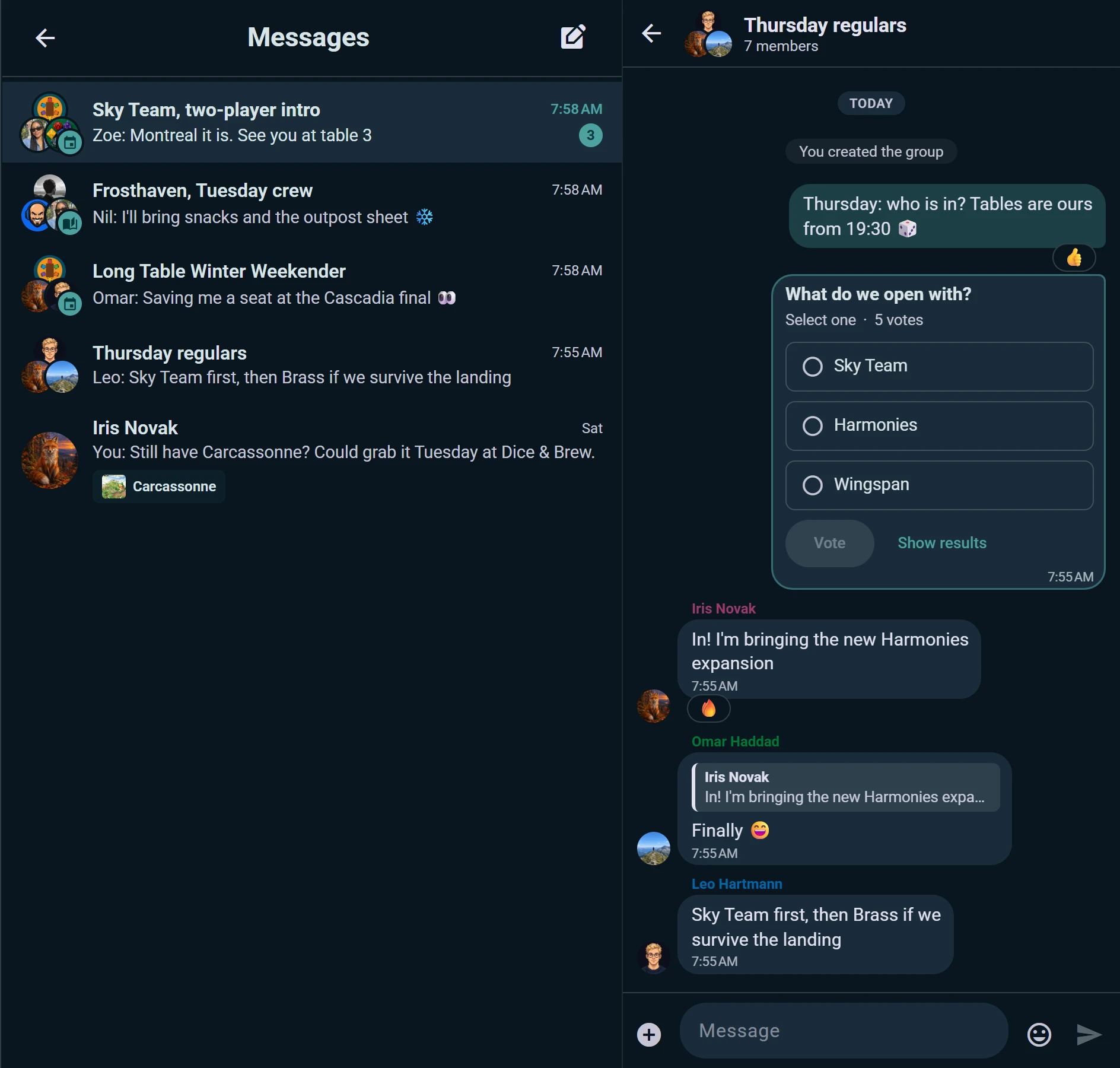
Chats That Come With an Event, a Campaign, a Table or a Club
Some chats belong to something, and their members follow it on their own, so nobody has to maintain a list:
- Attendees chat: every event has one for its confirmed attendees and organizers. Open it from the event page or from the attendee list.
- Players chat: each scheduled game that takes sign-ups has its own, for the people at that table.
- Members chat: a campaign's party talks between sessions in its own chat.
- Club chat: a club whose admins turn it on has one chat with every member in it, opened from the Club chat row on the club's page. There's no size limit, and big chats start on mentions and replies only, so a club of 300 doesn't buzz 300 phones for every message.
When someone joins the event, the table, the campaign or the club, they're in the chat; when they drop out or leave, they leave it. The first line of each chat says what it belongs to and who can read it.
A club chooses who writes in its chat: every member, or only its organizers or admins, which makes it an announcements channel. Then every message notifies every member, however big the club, unless they chose otherwise in the chat's info. Whoever can't write still reads everything and reacts, and the box where you'd type says why; the club's admins are listed first among the members. A member the club muted reads but doesn't write until the mute ends. If the admins turn the chat off, what was said stays there to read, and turning it on again reopens the same chat.
You can also message a single person straight from an attendee or member list, and the chat list shows each conversation's last message.
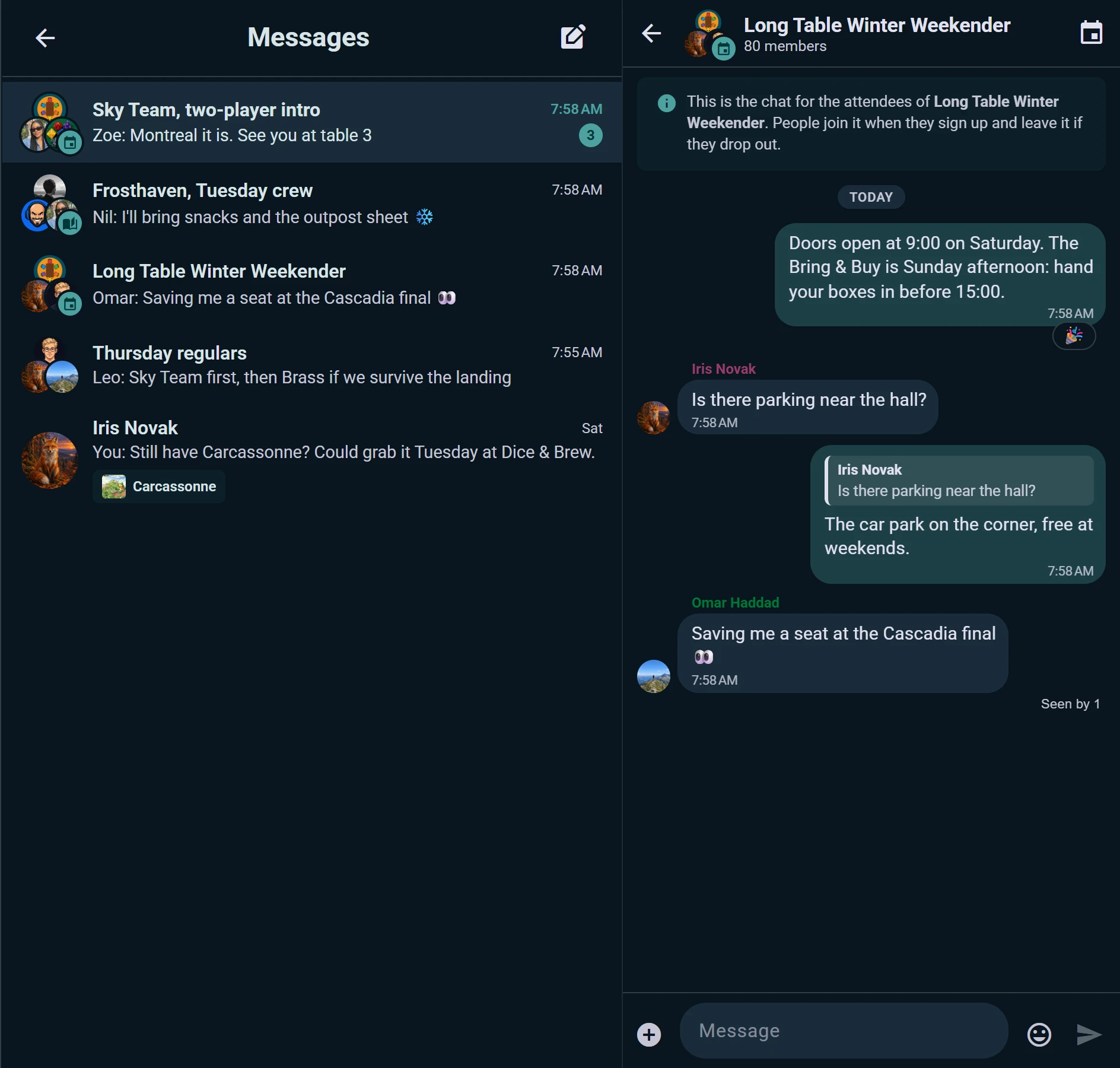
In a Conversation
- Reply to a specific message, and the reply quotes it
- React with an emoji; hover or long-press a reaction to see who added it
- Edit or delete what you sent; an edited message says so, and a deleted one shows "Message deleted" for everyone
- Photos (up to 5 MB each) and voice messages, played back at the speed you choose
- Emoji and GIF panel in the composer, with recent picks first
- Polls: ask the group a question, like which game to bring, and let everyone vote
- Seen by: in a group, see who has read a message; you also see when someone is typing
- Enter sends on a computer, and Shift+Enter starts a new line; on a phone, Enter starts a new line and the send button sends
Real-Time Delivery
Messages arrive instantly — no refreshing, no polling. Your conversation list shows an unread count beside any thread with new messages, and it clears as you read.
You get a notification when someone messages you, unless you have that chat open on your screen right then. You can have Ludoya email you as well if a message goes unread — see Notifications.
Contextual Conversations
Marketplace Conversations
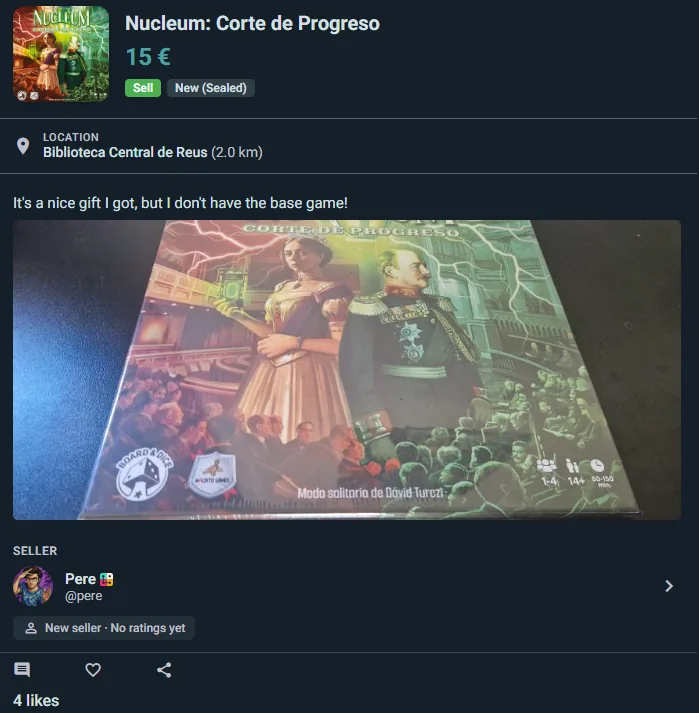
Messaging a seller about a listing opens a thread that carries the listing with it:
- A card at the top shows the game, its price, and the listing's current status — reserved, delivered, completed, expired or cancelled
- Both sides always see it, so nobody has to explain which copy they mean
- Ask questions and agree on payment and handover in the same thread
Sellers get a shortcut: the card has a Reserve for this buyer button, so once you've agreed terms you can mark the listing reserved for that person without leaving the conversation.
Privacy Controls
Who Can Message You
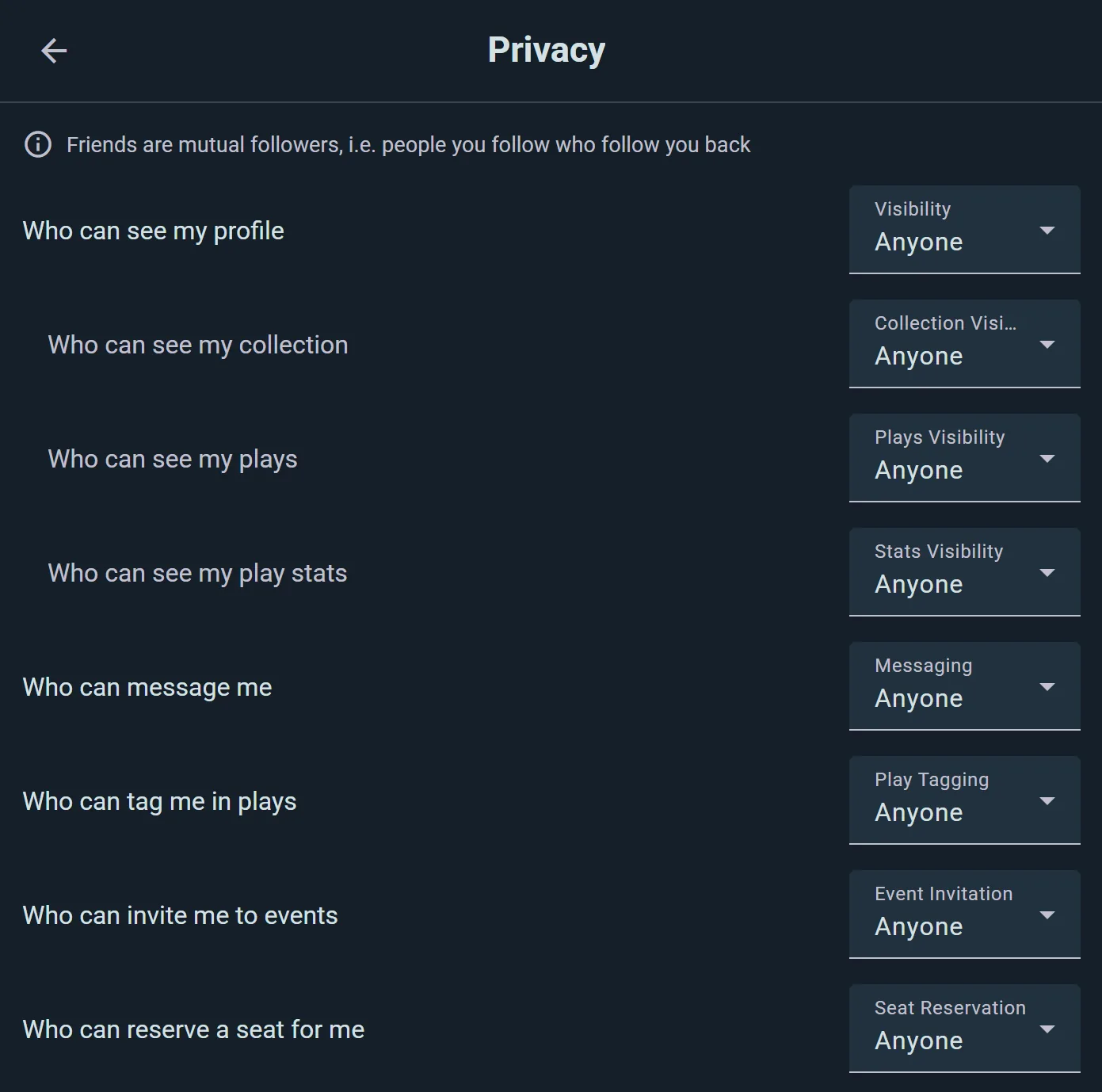
Control who's allowed to contact you directly. Go to Settings → Privacy, find Who can message me, and choose:
- Anyone: anyone on Ludoya can message you
- Friends: only people you follow who follow you back
- People I share group with: only members of your groups
- Nobody: no incoming messages (you can still message others)
Blocking
If someone is bothering you, open their profile and choose Block — you can also block from any post, comment or review of theirs. Blocked users can't message you, and you won't see their messages.
See also:
- Marketplace — buying and selling games
- Privacy & Visibility — control your messaging privacy
- Events — coordinating game sessions
- Integrations — posting your club's events to Telegram and Discord