
Run polished events, grow your community, and understand your customers — all from one platform.
Get Your Venue Running — 4 Steps
1. Create an Organization
Your venue wants an account of its own — an organization — so staff can act as the venue without going through anyone's personal profile, and so it can hold a premium plan. Register a new account, and at the "Who is this account for?" step of onboarding pick An organization; on the next screen type the venue's name and pick Shop (or Festival, if that fits you better). Already have a group? You can give it a login later without losing anything.
2. Set Your Location
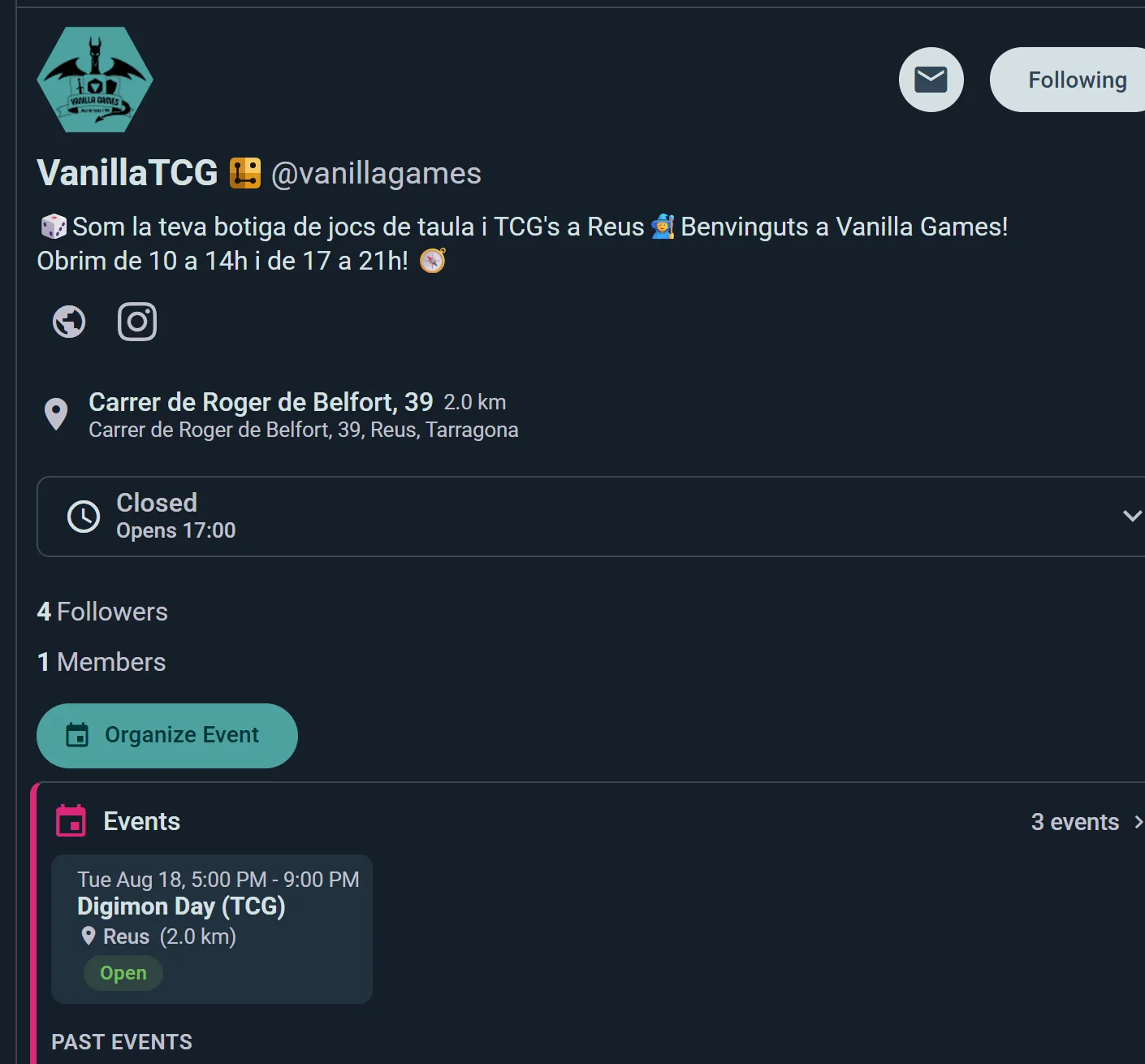
Give your venue its name and description in Organization Setup when you create it, and its picture with Edit profile; then add your address in the console's Locations — that's what puts you on the map so players can find you. While you're there, fill in your opening hours: they show on your profile, warn you if you schedule an event outside them, and let players filter communities by Open at — a date and a time, so someone planning next Saturday evening can find you, not just someone looking right now.
3. Create Your First Event
From your organization page, create an Event. Set the title, date, time, and your venue as the location. An event can be standalone (just attendance), or it can hold scheduled games (sign-up tables for specific titles) and, on the Club plan, sub-events (separate tracks under one roof).
4. Share It
Publish the event and share the link or QR code — post it on your website, pin it at the counter, or send it to your regulars. Members can export it to their personal calendars too.
That's your venue on Ludoya. Everything below adds operational depth as you need it.
Once Your Venue Is Running
Named Spots
Define named spots for your location — individual tables, rooms, or play areas. When you run an event, sub-events and scheduled games each claim a spot so attendees always know where to go and two activities never fight for the same table. Named spots are free for every club.
Interactive Floor Plans (Business plan)
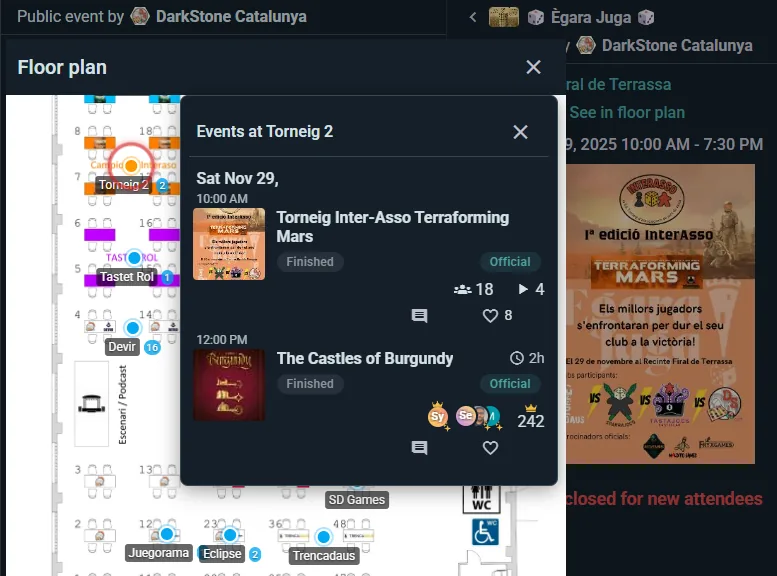
Upload a floor plan image for your location and drag each spot onto the map — attendees see a pannable, zoomable layout of your space. Without a floor plan, spots work as plain labels ("Table 3", "Back Room"). The visual map is worth it at larger venues where navigation actually matters.
Structured Events
Scheduled games — add a lineup to your event with time slots, seat counts and waitlists. A seat can be flagged as a Demonstrator (someone who'll teach the game) or a Game Master. Each person notes their own experience level when they sign up, so you can see at a glance whether a table is full of newcomers or veterans.
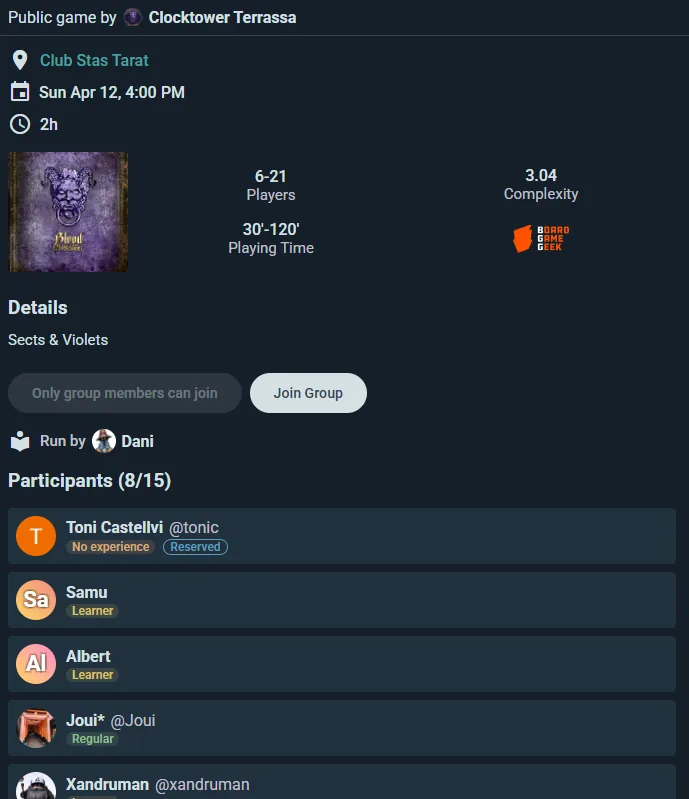
Games at the Event — a shared list of what's in the room. Anyone attending can add a title from the catalog, and as an organizer you can bulk-add straight from your venue's collection instead of one at a time. Mark each copy free to play or owner present, and flag the ones you provide as official. Attendees react to the lineup from "Need to play" down to "Pass", so you can see demand before deciding which tables to schedule.
Recurring events (Player plan; a venue gets it with any of its paid plans) — set up board game nights that auto-repeat every week or every few weeks, on the weekdays you pick. Members see the full series and RSVP to individual sessions.
Sub-events (Club plan) — run multi-track events with separate schedules, capacities, and sign-up lists under one parent event.
Play matching — let Ludoya plan an open-table night's tables from what people want to play, or run a demo stand on a timetable visitors book, with a desk that checks them in and seats walk-ups.
Game Library
Your organization's collection is separate from personal collections. Catalog every game on your shelves — customers browsing your Ludoya page can see what's available before they visit. Note where each copy lives with Inventory Location ("Shelf B", "Back room") so staff can actually find it. If you sell games, list them on the Marketplace to reach Ludoya's audience.
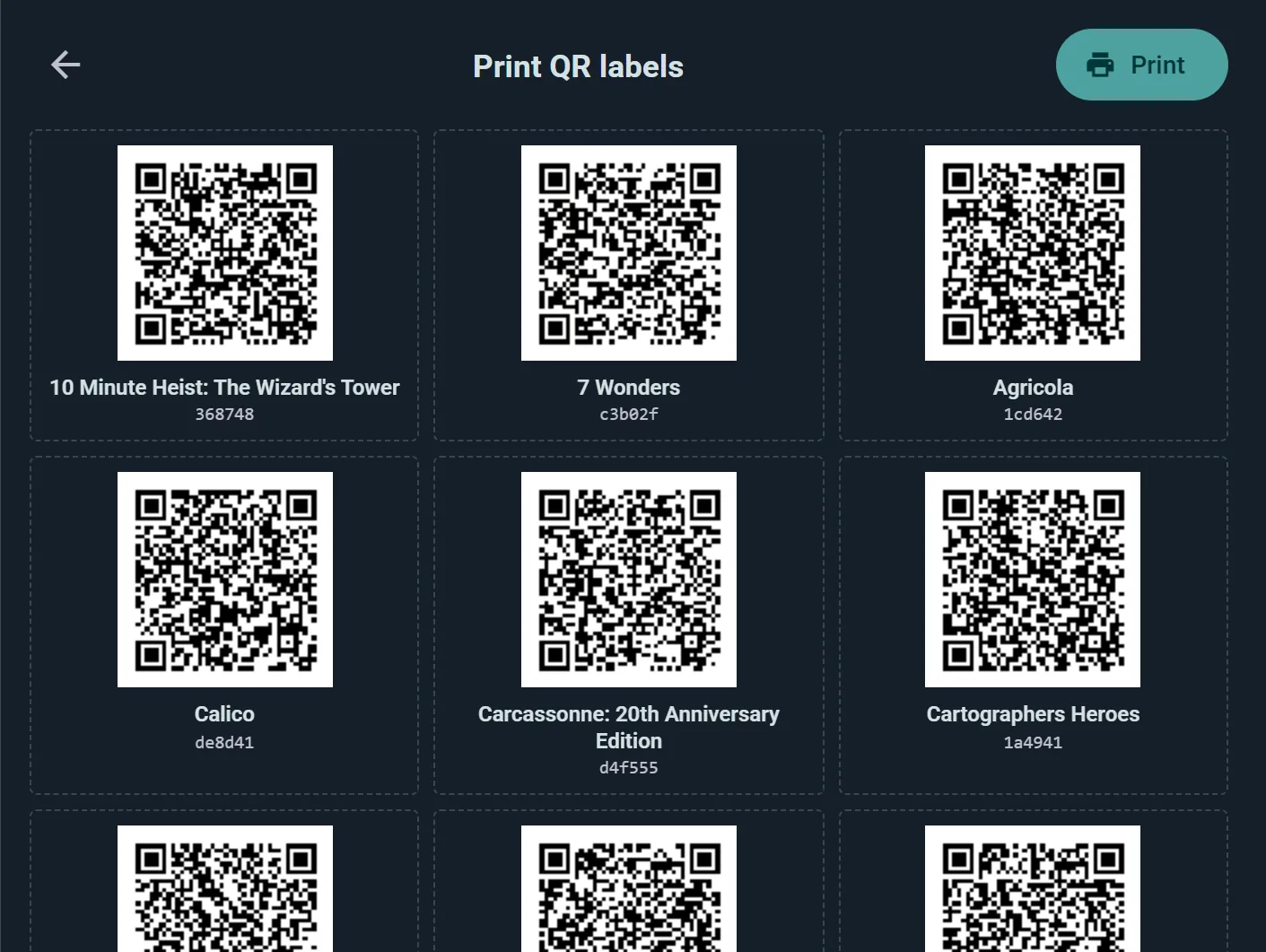
QR labels on every box (Club plan and up) — print a QR label for every copy from your collection's ⋮ menu and stick one on each game. Customers at your events scan a box to take it to their table and scan again to return it — every loan tracked, no staff involved. Your staff scan labels in bulk to set inventory locations or register a stack of games to tonight's event.
Promote Your Venue
Telegram and Discord (Club plan) — auto-post event announcements to your venue's Telegram chat or Discord channel when you publish.
Embeddable widgets — embed your event calendar, game collection, or play activity on your website. Pulls live data from Ludoya.
QR codes — print one at the counter so walk-ins can join your group instantly.
Image exports — shareable visuals for social media: event lineups, top games played, monthly stats.
Tournament Nights (Club plan)
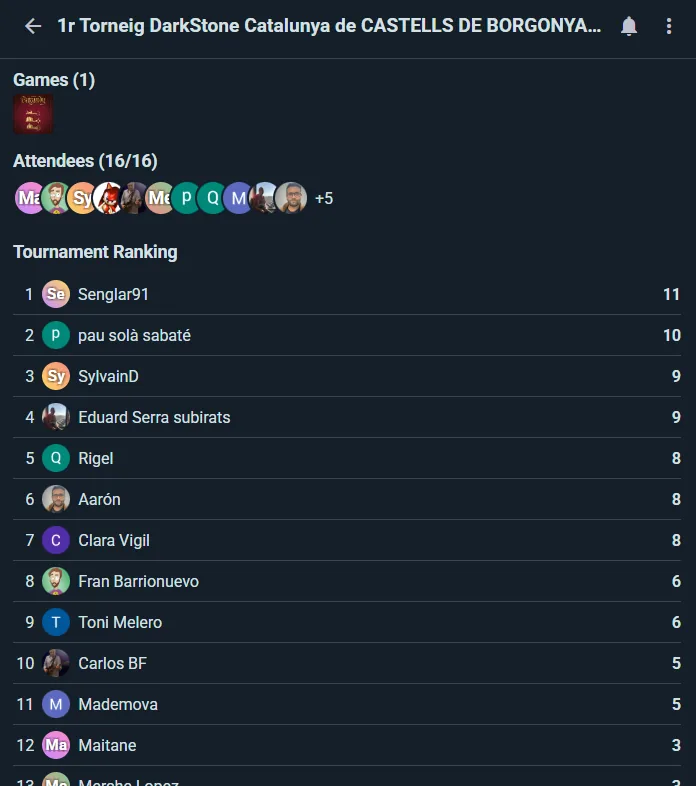
From your group page choose Organize Tournament — run it as Swiss, mixer, or single/double elimination. Ludoya generates the pairings and bracket and keeps a live leaderboard you can put up on a screen at your venue, then share the final standings in your feed.
Prize Raffles (Club plan)
Run prize raffles at your events — add your prizes and draw winners with a live animated reveal everyone can watch. Perfect for store giveaways and convention prize tables.
QR Entry Verification (Business plan)
Attendees show a QR code from the event page. Scan it at the door and Ludoya confirms they're on the list; one tap on Check in records that they came, so attendance builds up as people arrive. Enable Verify attendance with QR code on the event first. Whoever works the door scans with any phone, tablet or laptop with a camera: the Ludoya app, or the website in a browser. Mark anyone who never turned up with Mark as no-show afterwards.
Custom Attendance Forms (free, up to 5 questions; unlimited on Club)
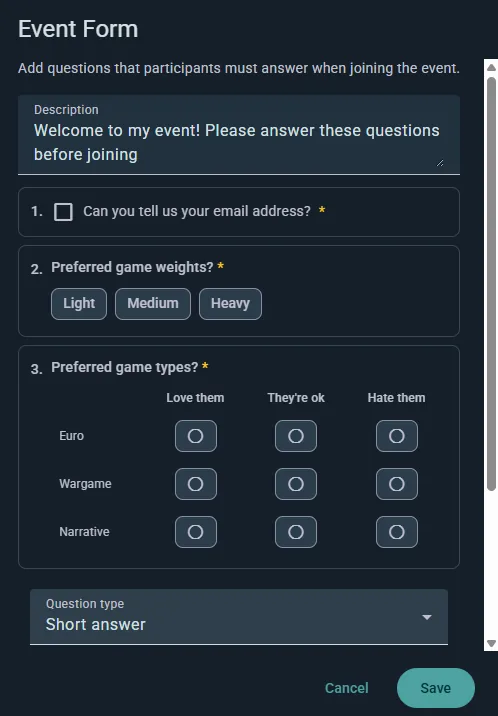
Add questions to your event that attendees answer when they RSVP — dietary needs, experience level, marketing opt-ins, game preferences. Responses are visible in the event management panel and exportable as CSV.
Attendee Data Export (free on every plan)
Download RSVP lists and form responses as a spreadsheet or CSV for post-event analysis, email follow-ups, or reporting to venue management.
Table Bookings (Business plan)
Let players book a visit from your profile: a table and a time, and, if you let them, games from your collection held for the visit. Everything happens in your console's Table bookings section, for store and café accounts.
Setting It Up
In Table bookings, open the settings and turn on Take bookings: your profile then shows Book a visit. Choose where (which of your locations), how often visits start, the shortest and longest visit, how much notice a booking needs, how many days ahead people can book, the largest party, and the time you need between visits. Visitors can ask for games lets them pick games from your collection to be held for their visit; a game held for one visit isn't offered to another at the same time.
Tables bookable online lists your tables: untick the ones you keep for walk-ins. The desk can still seat people there.
Big groups can book several tables is for a group no one table seats. On, the booking page gives them free tables to push together: as few as it can, in one room, side by side on your floor plan, and the booking holds all of them. The largest party then goes up to your six largest tables together, or to the Max. party size you set.
Confirm bookings automatically decides who has the last word. Off, each booking waits for your answer, in the console and on your phone, and the table stays held until you answer; a request nobody answers is declined 30 minutes before its time.
How Visitors Book
Book a visit on your profile asks how many people and for how long, then the day and the time: a time every table is taken at is greyed out. Under Table, they keep Any free table (you seat them at the one that fits best) or pick one, on your floor plan when you've drawn one, and then ask for games if you let them, and leave a note. A group no one table seats sees the tables they'll get together instead, with how many seats they make. Someone without an account books with a name and an email, if you allow it, and gets a link to change or cancel. Once the booking stands, their pass is a QR code to show at the counter. They can change or cancel any time before the visit starts, and hold up to three visits with you at once.
The Desk
Table bookings shows each day's visits. Add booking takes a phone booking, Walk-in seats someone who just turned up, and Scan reads the QR code a visitor shows. Find a booking in the next two months by name, phone or email.
A group's visit shows all its tables, as in "Table 5 + Table 6", and its block sits on each of them in the day's plan. For a phone booking for a group, tick several tables under Table. Move one of their tables changes one of a group's tables at a time, and a line warns when their tables seat fewer people than the group.
Event Day Checklists
Setup (once): Create your Organization. Define spots for your location. Optionally attach a floor plan image (Business). Catalog your game collection. Connect Telegram or Discord. Embed the event widget on your website.
Before each event: Create the event, assign spots to sub-events and scheduled games, add form questions, publish. Telegram or Discord announces it. Share the link and QR code.
During the event: Scan QR codes at the door (Business). Organizers start live sessions at each table. Update tournament scores in real time. The AI Game Assistant helps players with rules.
After the event: Export attendance data. Review play summaries and stats. Post highlights to your feed. Plan the next event.