Ludoya puts you in control of what's public and what's private. Every piece of your data—from your profile to your plays—has its own visibility setting. You decide who sees what.
The Four Visibility Levels
Every privacy-sensitive area of your profile and activity can be set to one of four levels:
- Anyone — public to the entire Ludoya community
- Friends — only people you follow who also follow you back
- People I share group with — only members of your groups
- Hidden — only you
"Friends" is deliberately mutual: someone following you doesn't gain access unless you follow them back.
What You Can Control
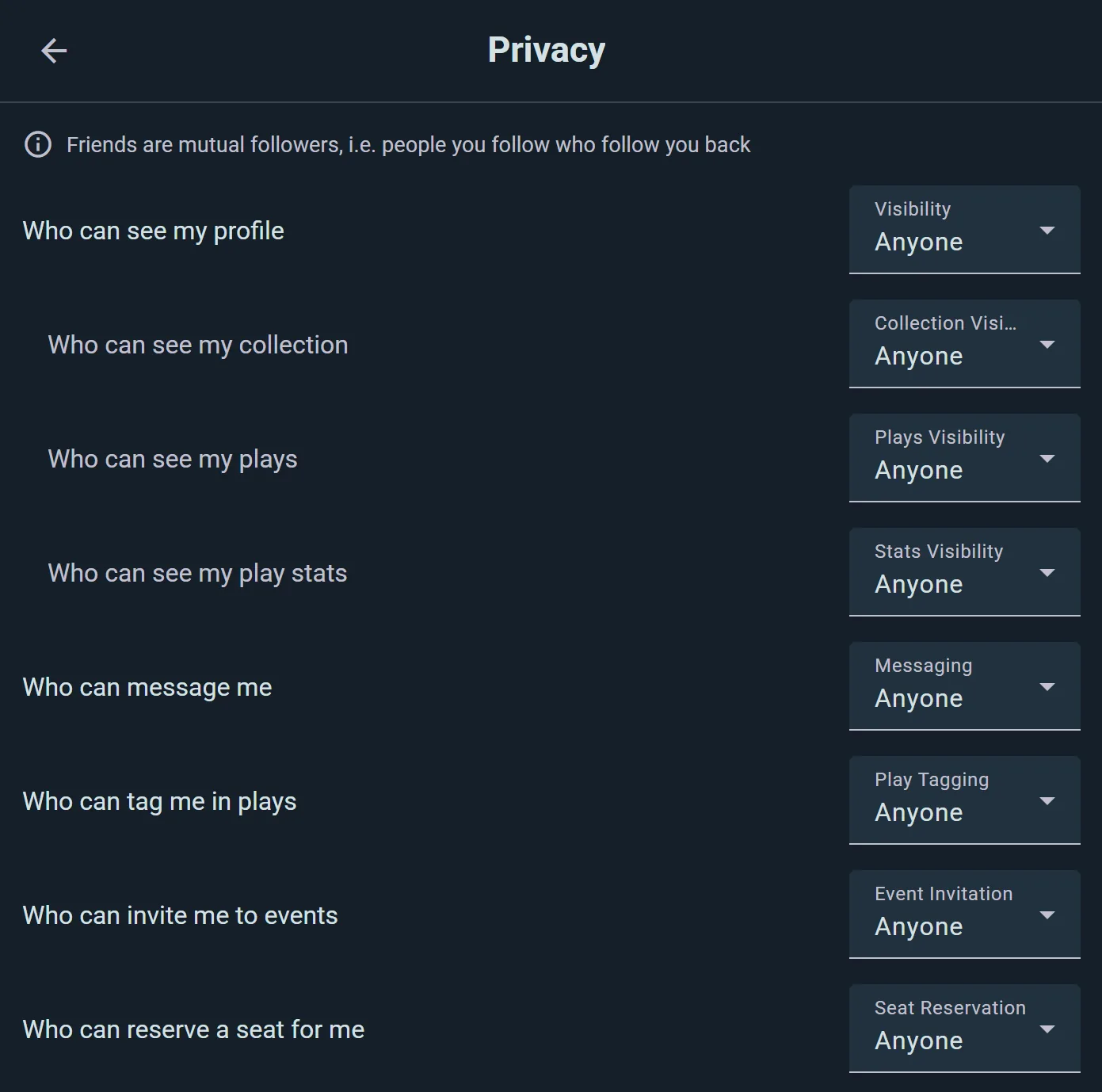
Find these under Settings → Privacy. Notice that collection, plays and stats sit indented under your profile visibility — that's the ceiling described below.
Profile
Your profile header — avatar, name, bio, location. Set to Hidden and you won't turn up in search at all; People I share group with keeps you out of search too, since search only surfaces public profiles (and friends, to each other).
Collection
Your list of owned games. People I share group with is the sweet spot for clubs — your group mates can see what you could bring to game night, and nobody else can.
Plays
Your play history and logs.
Worth knowing: restricting your plays doesn't erase you from other people's records. Someone you played with still sees that session in their own history — your setting governs what people can browse from your side.
Statistics
Your play stats — totals, most-played games, win rates, and the rest.
Messaging
Who can start a conversation with you: Anyone, Friends, People I share group with, or Nobody. Choosing Nobody stops incoming messages; you can still write to other people.
Play Tagging
Who can add you as a player when they log a game.
This one shapes who finds you in the player picker rather than acting as a hard lock — the real safeguard is that a tag never touches your profile until you accept it. See play tags.
Event Invitations
Who can invite you to their events. Set it to Friends and a stranger organizing something nearby can't drop an invitation on you; set it to Nobody and you join events entirely under your own steam.
Seat Reservations
Who can hold a spot for you at an event. Organizers and friends reserving you a seat is usually welcome; being signed up for things by people you don't know is less so. This setting decides which it is.
How the Levels Interact
Your profile visibility is the ceiling for the seven settings under it — messaging, play tagging, collection, plays, stats, event invitations and seat reservations. Two rules, and they behave differently:
- Set your profile to Hidden and all seven drop to Hidden with it.
- Set it to Friends and only the ones currently set to Anyone come down to Friends. Anything already narrower is left exactly as you had it.
It works upwards too. Opening up any of those seven raises your profile to match — set your collection to Anyone and your profile becomes Anyone, because a public collection on a hidden profile isn't a coherent thing to ask for.
Worth knowing if you lock things down: event invitations and seat reservations go with it. If a friend later can't reserve you a seat, that's why — raise that one setting on its own.
Help Improve Ludoya
At the bottom of the page, Help improve Ludoya shares anonymous usage data, so we can see which features people use. It's off unless you turn it on, and you can turn it off again at any time.
Notification Preferences
Ludoya can tell you about everything from a play tag to a price drop on a game you've wishlisted (see Notifications). For each kind, Settings → Notifications has three columns, and you choose how far it reaches:
- E-mail — it reaches your inbox, and your phone and the app too
- Push — a push notification on your phone, and the app
- In app — visible in Ludoya and nowhere else
- Untick all three and you're not notified
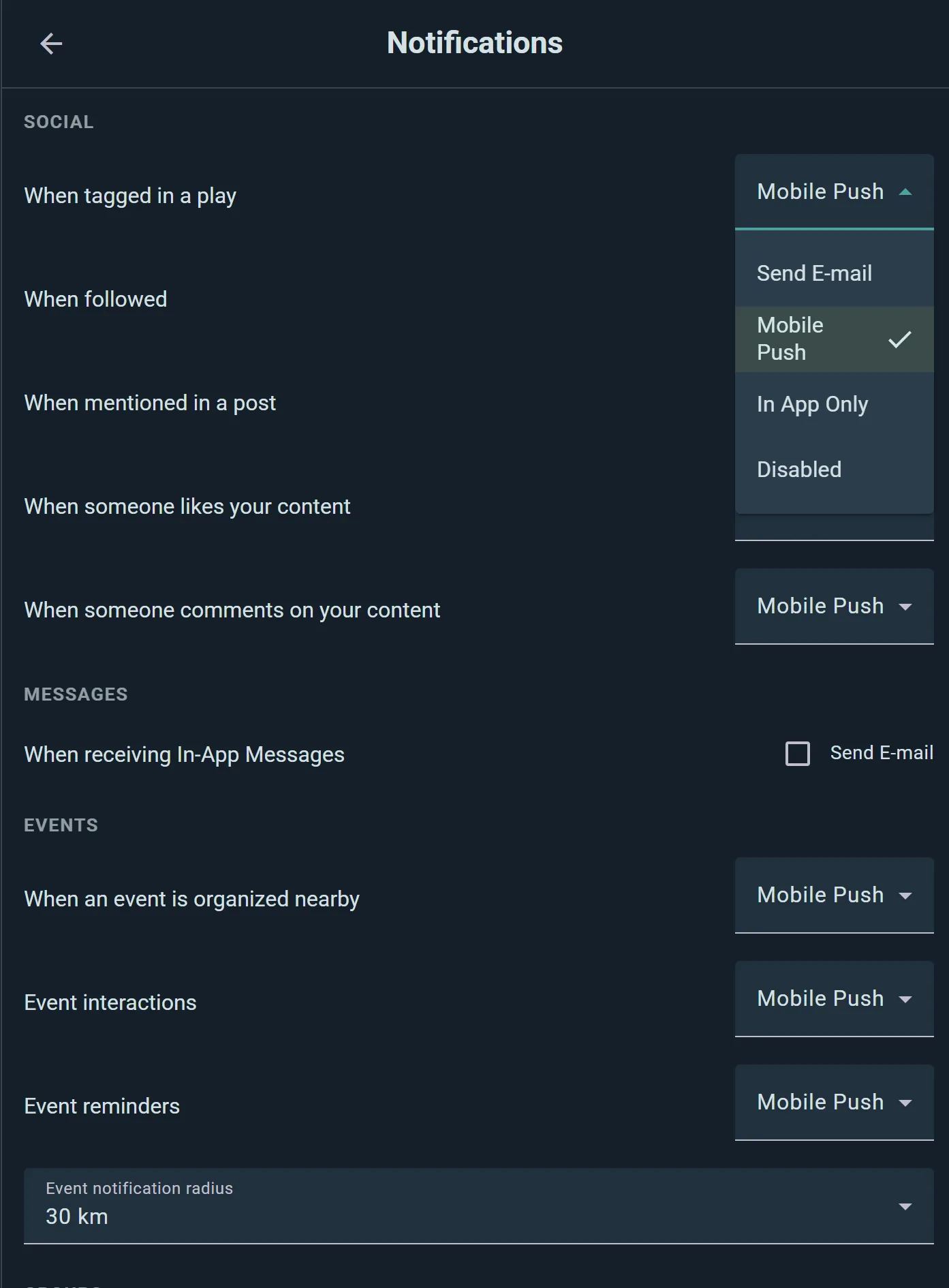
Choices are grouped by topic — Social, Messages, Events, Groups, Marketplace, Campaigns, Shops, and everything else — so you can be pushed about event reminders while likes stay quietly in-app. Notifications covers the full list.
Radius for Nearby Alerts
"Event organized nearby" and "group created nearby" alerts follow your location, and you set how far to listen: 2 km, 5 km, 30 km, or 100 km. Any event starts at 5 km, and Games you want to play, for events with a game you're after, at 30 km. To stop them entirely, untick In app on those rows.
E-mails
Send me e-mails, at the top, is the master switch: with it off, nothing reaches your inbox. Private messages decides how direct messages reach you; their e-mail only follows if a message stays unread.
Language & Theme
- Language: the app's language, and the Languages I understand, so posts written in them aren't translated for you
- Appearance: light or dark theme
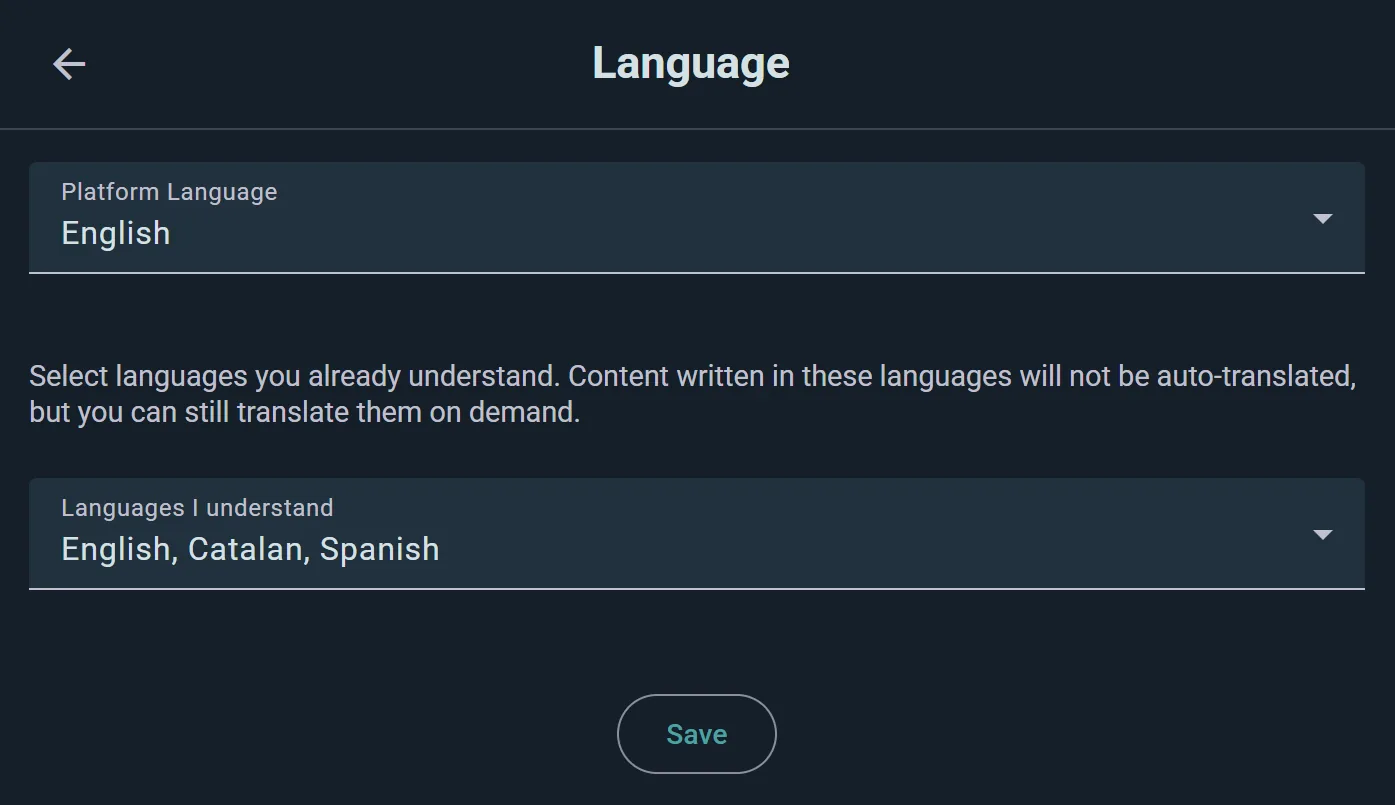
These are personal preferences, not privacy settings—just adjusting how the app looks for you.
Account Security
Password Management
Settings → Change password updates your login. Signed up with Google? Set password gives you one, so you can also sign in with your e-mail. Use a strong, unique password.
Taking Your Data With You
Your play history and collection aren't locked in. Settings → Export & Import Data downloads your collection and your plays as CSV or Excel, and brings them in from a file. Ludoya also syncs both ways with BoardGameGeek, so you can push your plays and collection back out to BGG whenever you like. Game Kits export as files, and clubs can pull their data through the public API.
To delete your account, open Settings → Account Information and choose Delete Account. If you can't sign in, or deleting doesn't go through, we'll delete it for you. For anything else, like a copy of the rest of your personal data, get in touch.
Blocking & Reporting
Block a User
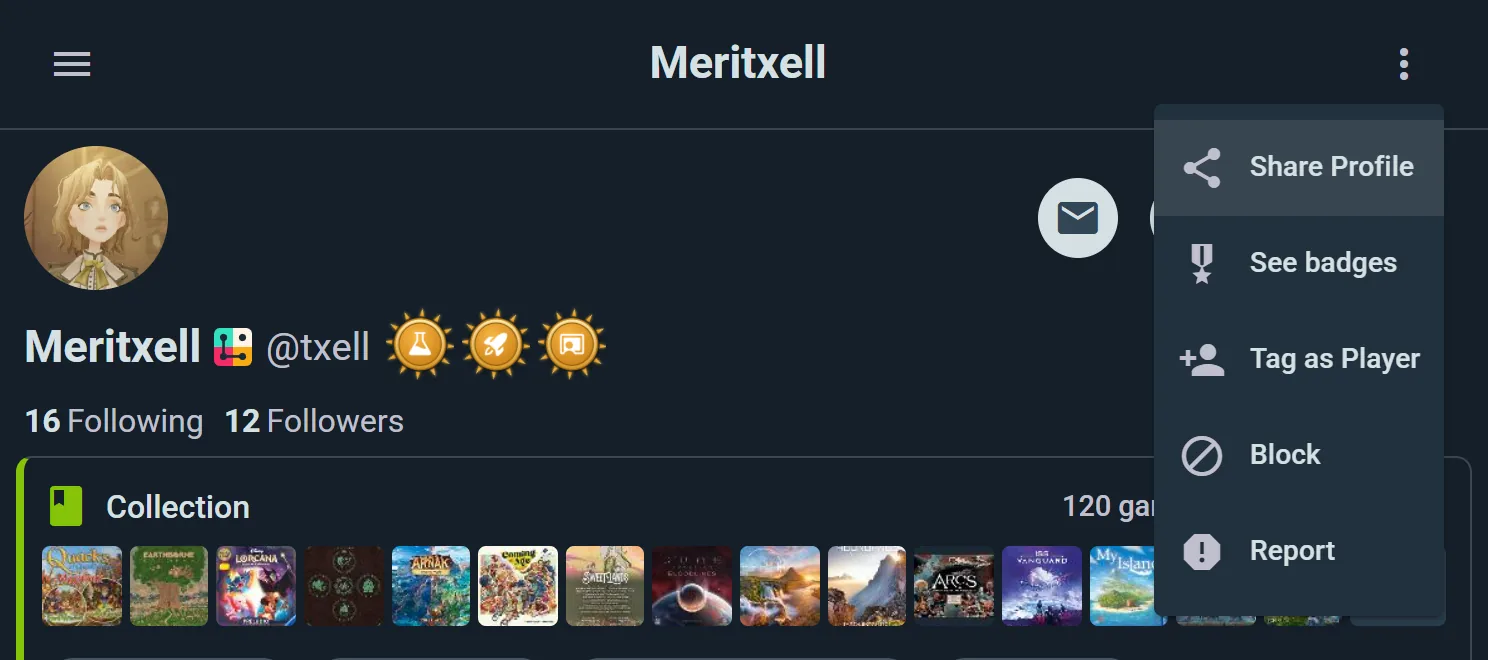
Block someone from their profile, from a post or comment they wrote, or from your follow lists. When you block someone:
- They can't see your profile, collection, or plays
- You won't see their content in feeds
- They're removed from your follow lists
- You're removed from theirs
To undo it, open their profile and choose Unblock.
Report a User
If someone's behavior violates Ludoya's code of conduct, open the ⋮ menu on their profile, post, comment or review and choose Report. Describe what happened in your own words and send it — the Ludoya team reviews every report.
Reports are confidential: the person you reported isn't told.
Links That Leave Ludoya
People post links — in comments, messages, profiles, shop offers and marketplace listings. Before you follow one off Ludoya, we show you where it actually goes.
The dialog names the site and nothing else. That's deliberate: a full address is exactly where a lookalike domain hides its real destination, so we put the part that matters where you can't miss it. Continue if it's what you expected, or cancel if it isn't.
Well-known destinations don't trigger it — BoardGameGeek, the usual social platforms, Google Maps, Wikipedia and the app stores go straight through. A warning in front of every YouTube link would just train everyone to tap past it, which is the opposite of the point.
Seen enough of them? Tick Don't warn me again and they stop, on that device.
Getting Help
Have privacy concerns or questions about your data? Contact us — we read everything that comes in and will help you sort out your settings or address a concern.
You can also delete your account entirely at any time; see account deletion.
See also:
- User Profiles — customizing your profile
- Messaging — controlling who can message you
- First Steps — initial setup and preferences