
Ludoya connects board gamers with events in their area. Whether you're looking for a casual game night or hosting your own, this page covers discovering, joining, and creating events. For scheduled games within events, see Scheduled Games. For venue-level operations (QR check-in, floor plans, forms), see Event Operations.
Discovering Events
Using the Location Chooser
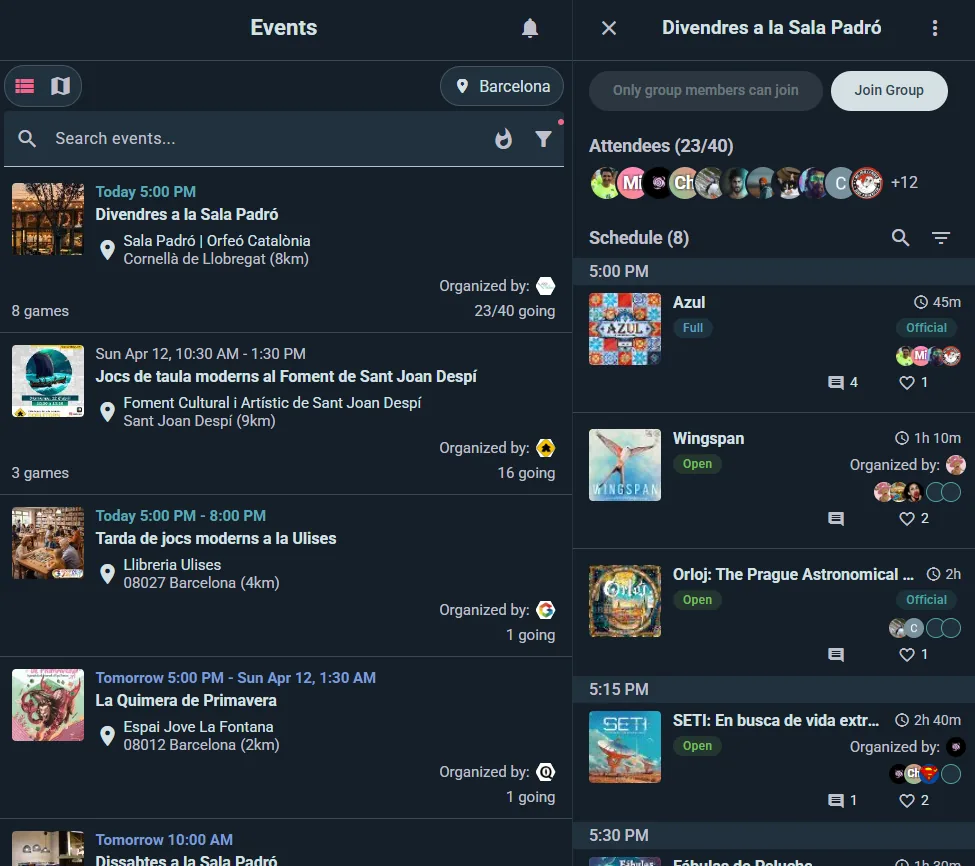
- Go to Explore and pick the Events tab
- Look for the Location Chooser at the top
- Enter your city
- Set your distance filter (e.g., "within 10 km")
Searching for Events
Use the search bar to find events by name, topic, or specific games. Results appear instantly.
Viewing Events
List View
- Scrollable list showing host, date, venue, attendee count, available seats
- Sort by relevance*, date, distance or alphabetically
- *Relevance is based on event popularity, distance, and date
Map View
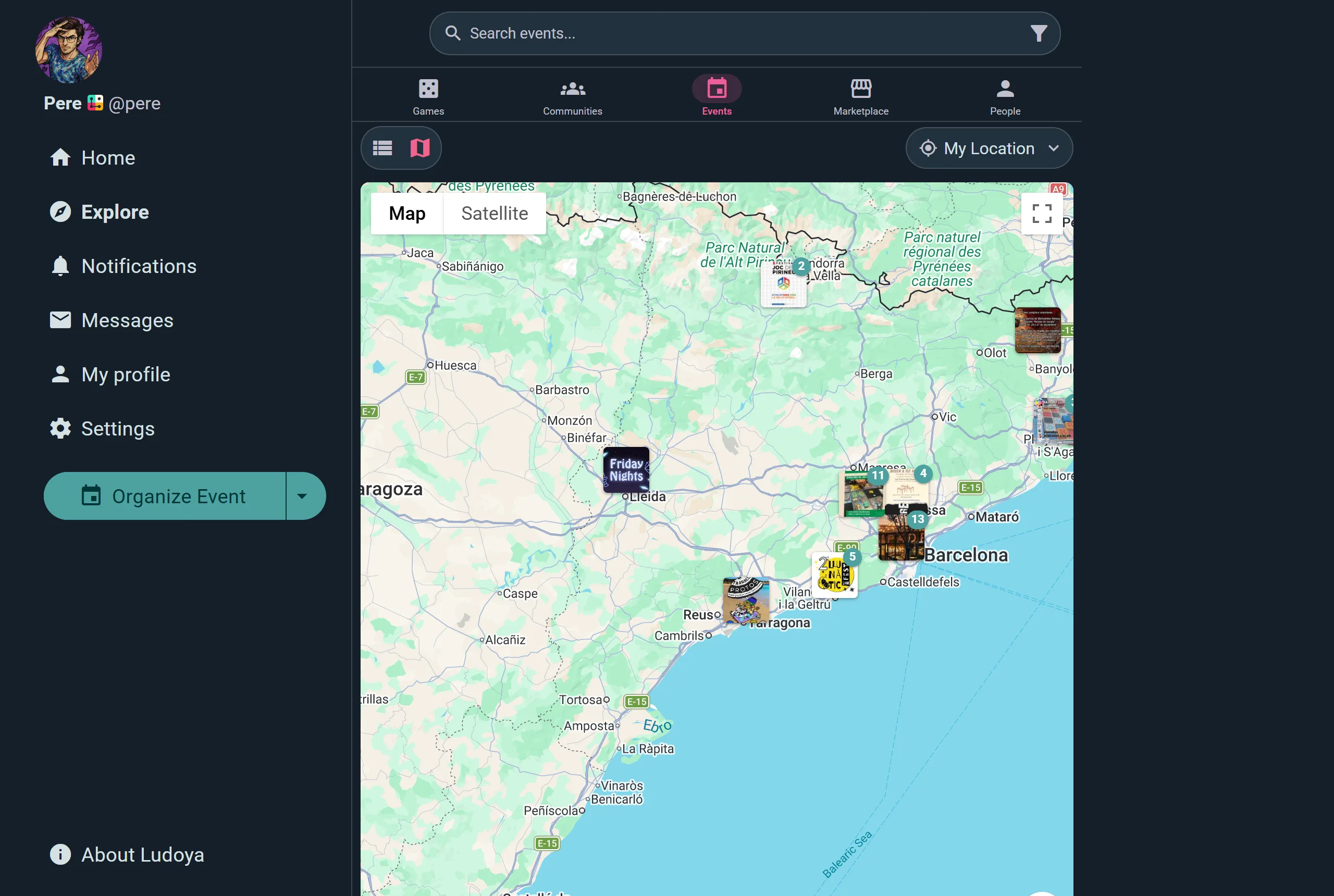
- Events plotted on an interactive map
- Click markers for quick previews
- Great for finding events near a specific location
Event Types
Ludoya has four kinds of event:
Events (General Gatherings)
A general event is a container for an evening or day of gaming. It brings people together around a time and place, and can host multiple scheduled games inside it. On the Club or Business plan an event can also contain other events as sub-events, enabling multi-track gatherings such as conventions with beginner and advanced streams, or all-day club nights split into separate sessions. Examples: a weekly game night at a café, a regular club session, a convention day.
Scheduled Games
A scheduled game is a special kind of event focused on one specific board game. It has its own page, seat cap, time slot, and participant list. Scheduled games can exist on their own ("Looking for 3 players for Gloomhaven this Saturday") or be nested inside a parent event as part of a larger gathering. See Scheduled Games for full details.
Tournaments
A tournament is a competitive event where Ludoya generates the pairings, keeps live standings, and draws the bracket for you. See Tournaments for full details.
Play Matching
An event can let Ludoya get people to its tables: plan a club night's tables from what everyone wants to play, run a fair stand's timetable that visitors book, or match playtesters to prototypes. See Play Matching for full details.
Together, an event with scheduled games, sub-events, or a stand inside it lets attendees browse the full lineup and sign up for exactly what they want to play.
Attendance Modes
Separately from the event type, every event has an Attendance Mode chosen by the host — it controls whether and how people sign up, and is independent of visibility settings.
RSVP (Default)
The classic Ludoya flow described throughout this page: attendees join, choose a status, and appear in the attendee list. Capacity, reservations, minimum participants and the rest all apply. Every event uses this mode unless the host chooses otherwise.
No Sign-Ups
A purely informational listing — there's no RSVP button and no attendee list, and no one can see who's going. Attendees can still comment, react, share the event, see it on the map, and add it to their calendar. Useful for announcing something without collecting a headcount.
External Sign-Ups
The host sets a call-to-action label and link (e.g. "Register on Eventbrite") that replaces the RSVP button for visitors who aren't already on the attendee list. Clicking it opens the outside registration page in a new tab — public sign-ups happen off Ludoya. Behind the scenes, the host can still manage an attendee list manually: inviting people, reserving spots, marking who showed up, scanning QR codes, and exporting attendee data. Everything that works off that attendee list keeps working too — games at the event, raffles, custom forms, and experience levels. If you were invited or had a spot reserved for you, you can still respond with your own RSVP (confirm, decline, or leave) — it's only visitors with no invitation who see the external link instead.
Ludoya Tickets
Sell paid admission on Ludoya itself, with checkout on the event page and a QR ticket per attendee. Available to eligible groups — see Ludoya Tickets.
Tournaments need an attendee list to generate pairings, so they can use RSVP or External Sign-Ups (the host manages the list), but not No Sign-Ups. An event with play matching seats the people who sign up on Ludoya, so it always takes its sign-ups here.
Two things to know about External Sign-Ups: capacity figures there are informational only, since sign-ups happen off Ludoya, and reservations and minimum-participant counts are RSVP-only features.
The Event Page
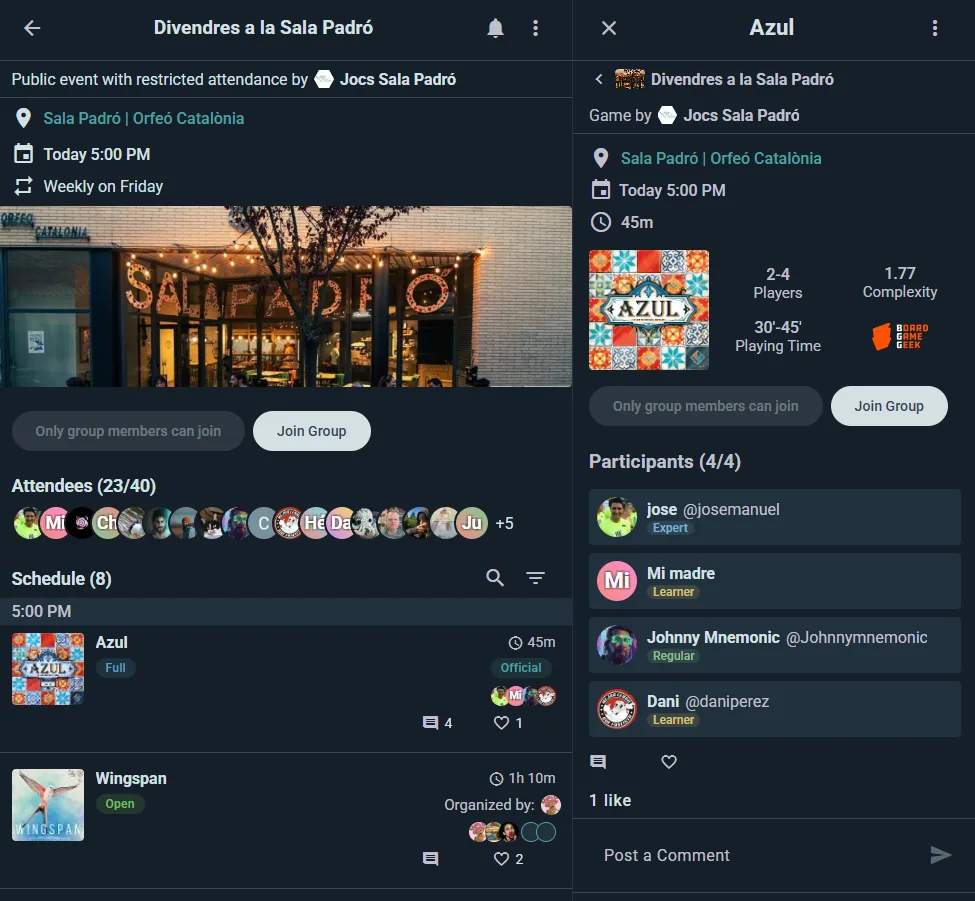
Host Information
- Host name and a link to their profile
Visibility & Access
- Public — anyone on Ludoya can find it and join
- Only friends — for events you host personally, limited to your mutual follows
- Only group members — for group events, limited to that group
- Only invited — nobody sees it unless the host invites them
Separately from all of that, a host can tick Anyone with the link can access, which lets people reach the event through a shared link even when it isn't otherwise visible. Public events are always reachable by link.
Only group members can join keeps sign-ups for the club's members: anyone else is offered to join the club, or ask to. If the organizer also turns on Non-members can ask you for a seat, a visitor can Request to attend that one event; the organizers approve or decline, and nobody else sees the request. A club can also keep a night's seats for a membership tier and up, or for members whose dues are in order.
Location Details
- Venue name, full address, interactive map, and distance from your location with directions link
Date, Time & Recurrence
- Specific date, time, and timezone
- Recurring events (Player plan) repeat every week or every few weeks on a chosen weekday (on a club's event, the club's own plan is the one that counts), shown as "Weekly on Monday" or "Every 3 weeks on Monday until 14 December". Hosts can have new occurrences created as drafts so each one gets a final look before it goes live
- Attendees sign up date by date, and can put the whole series in their calendar at once: Download the whole series, Subscribe in your calendar app or Subscribe in Google Calendar
Images & Description
- Host-uploaded photos and a description of what to expect
Attendees Section
- Total spots, remaining spots, and a list of current attendees
- Once every spot is taken the join button reads Full and can't be tapped. General events don't have a waitlist you can queue on — that exists on scheduled games, where a full table offers Join wait list. Keep an eye on the event, or ask the host to reserve you a spot
- Shown on RSVP and External Sign-Ups events — on External events it lists the people the host has added, and visitors see the external registration button in place of the RSVP button. No Sign-Ups events skip this section entirely
- A private list: when the host picks Only organizers see who signed up, attendees see which seats are taken, but not who took them
- The attendees chat: every event comes with a chat for the people going, which they join when they sign up and leave if they drop out
Social Thread
- Attendees can comment, ask questions, and discuss
- Like and reply to create threaded conversations
- Events automatically appear in followers' feeds, the group's feed, and local discovery
An event you've opened stays on your phone, tickets and check-in QR included, so it still opens in a venue with no signal. See Offline & Sync.
Scheduled Games & Sub-Events Within
Each scheduled game appears as a subsection showing the game, player count, roles, experience level, estimated duration, and a join button. See Scheduled Games for the full breakdown.
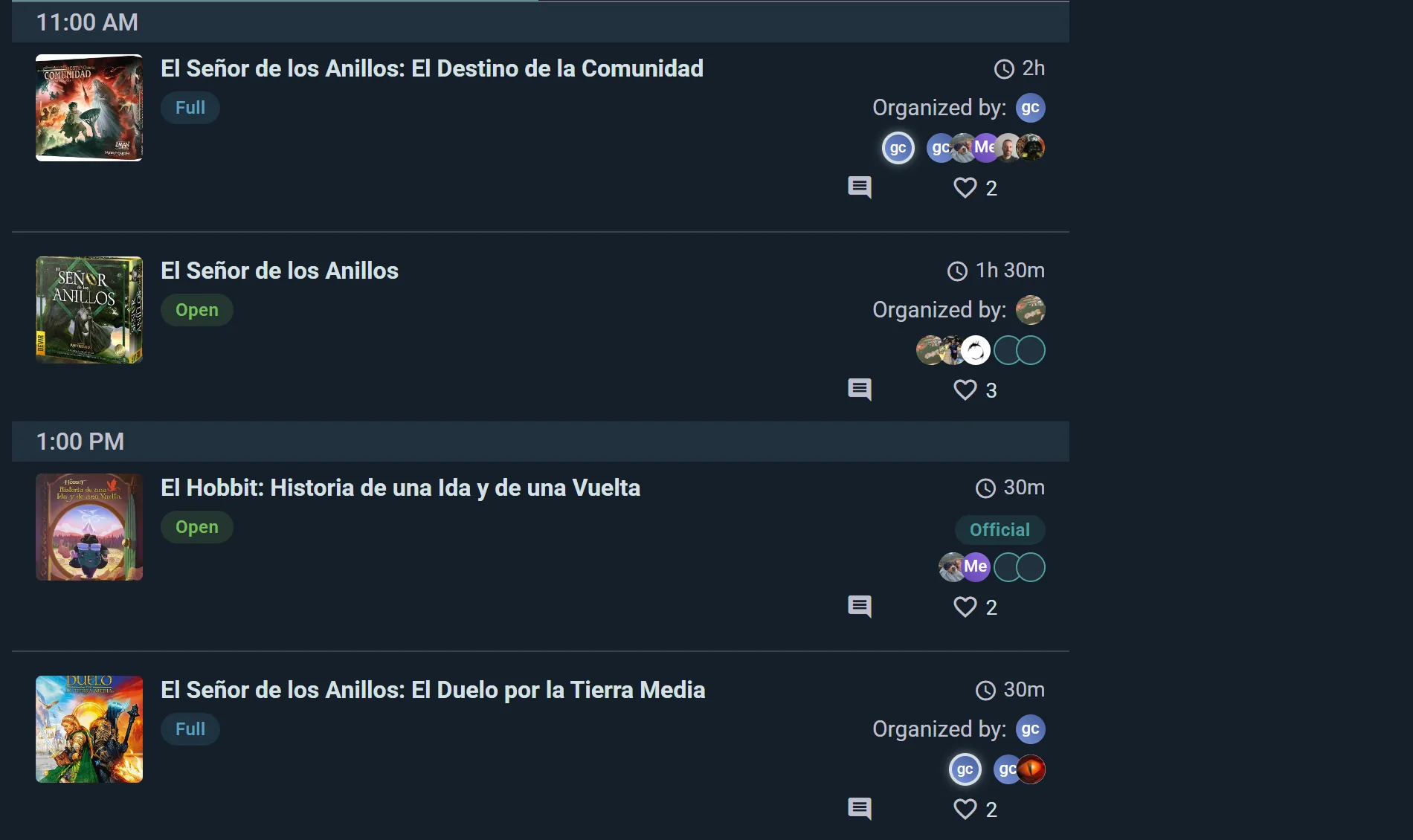
On the Club or Business plan, events can also contain sub-events — fully-featured nested events that appear under the parent. Each sub-event has its own page, attendees, and schedule, and can itself host scheduled games. This is ideal for multi-track gatherings where each track needs its own registration, capacity, and lineup.
- Move an event under another one, or back out on its own, from its menu. Its attendees, games and chat come along; if the new parent is on another day, it moves to that date at the same time.
- A sub-event can run outside the parent's dates, like a pre-party the evening before.
- A sub-event with its own programme, like a convention's family area or its RPG track, shows up in Explore as an event of its own, so people find it even if they never open the parent.
- With a floor plan, the venue map shows where everything happens: tap a table or a room to see what's on there. See Event Operations.
Build a Programme from a Spreadsheet
In the event's console, Programme → Spreadsheet → Import programme (or Import from a spreadsheet while the programme is empty) reads an .xlsx, .xls or .csv file with one row per activity. Nothing is written until you've read the review and pressed the import button.
- Ludoya's own sheet: Spreadsheet → Export programme gives you every activity with its Ludoya id. Edit that file and import it back: a row with an id changes that activity, a row without one adds a new one, and nothing is ever deleted. After importing, export again before your next edit, so every new activity carries its id.
- A sheet of your own, such as your festival website's export, works too:
- A file with several tabs opens on the one that reads as a programme, passing over a legend or a cover. Pick another under Tab. One tab is imported at a time, and once it's in, Ludoya offers the next tab that reads as a programme.
- Ludoya reads the headers it knows and guesses others from their first words and their cells: "Nom del joc" is a title, "Data i hora" a date with its start. Check each guess, pick what the other columns are, or leave them out. A known header whose cells don't fit it (a "Tipus" column of categories) can be picked as something else. Several columns can make up the description, such as a short text and a "more information" one. A row of notes about the columns right under the header is left out on its own.
- Sections: a column read as Part of adds each section it names, such as "Partides de Rol" or "Jocs de Taula", as a group open for the whole event, with its rows inside. A category column ("Tipus de joc", "Categoria", "Secció") is guessed as Part of. A tab with no such column can be a section of its own: the review offers to put its rows in a section named after it ("ACTIVITATS"). Each activity sits in one section: a second category column isn't read.
- Colours: rows marked with colours are grouped by colour, named as your sheet's legend names them ("NOU", "ELIMINAR"), or as a sentence of it does ("LILA: pendent de revisar"). Rows your legend marks to delete are left out, this week and every week. Leave out any other colour in one go, or put it back.
- Times: a column that says when in words ("28 de març de 17h a 20h") gives each activity its end, and a row with no date its date. A row listing several sessions ("28 i 29 de març de 10 a 14h i de 16 a 20h", "a les 10h, 12h i 16h") becomes one activity that runs in those time slots. Sessions with starts only last the row's Duration, the time between them, or two hours when they're far apart, and the review asks you to check. "Del 9 de març al 6 d'abril" runs until its last day.
- Which time is right: when a row's date says one time and its text another, the date's is used, and the review lists those rows, both times side by side, to take the text's time on each row or on all of them at once; times hours apart are pointed out. When the text names another day than the date, the date is used, and Use the text's day picks the text's for that row.
- Seats read as "100 participants", "4-6 participants" or "Màxim 20", and a dash as nothing. A duration reads as "90", "1h30" or "2h"; a lone "2" is asked about, not guessed. A yes or no for booking means sign-ups on Ludoya or none, and a booking link makes people sign up there, unless the booking cell says no. Your website's HTML in a description becomes text, with its links and bold kept.
- Pictures: a column of picture links, like your website's "Imatge", gives each activity its picture. The review shows them, and the import downloads them. A picture that can't be downloaded is named once the import is done, and its activity keeps the picture it had, if any: fix its link and import again, or add one by hand.
- Places: places the venue doesn't have yet are added as its rooms, when you manage the venue and it's a building or your own town venue. Spellings that differ only in case, accents or little words are one room, a list ("Hotel Nice, Hotel Avenida i Ateneu") puts the activity in each place, and two names that may be one place are pointed out, so you can write them one way.
- Rows with errors are listed with what to fix, the same reason said once with its rows, such as dates outside the event's. Fix them in the sheet and upload it again, or leave them out and import the rest. Rows to check, rows without a date and rows that look already imported can be left out the same way, and Put them back brings each group back.
Every week, from your own sheet
- Edit your sheet as you always do, and import it again here.
- Ludoya reads the tab the way you did last time: the same columns, the same colours left out, the same choice of times. A row you left out stays out while it's unchanged; edit it and it comes back to be read.
- Rows with your website's ids update their activities. A row without an id updates the activity with its title (and start, when titles repeat), marked Same activity so you can check it. Once your website gives that row an id, the next import keeps it. A picture comes in again only when its link changes: one you replaced by hand stays, and a blank cell never removes one.
- Only what changed is listed under To add and To change, time slots included: import it. When an activity's time or slots change, the people signed up are told, as when you change it in the console. Rows you were asked to check last week, unchanged, are folded away. Nothing is ever deleted: rows newly marked to delete that are already in the programme are listed, each with Cancel this activity, which asks first and tells whoever signed up.
Games at the Event
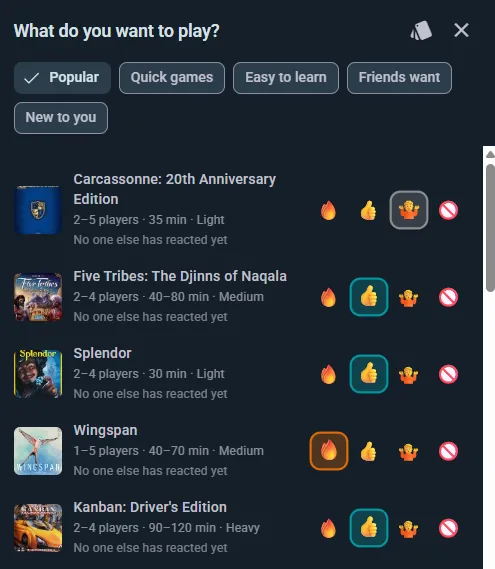
A meetup carries a shared list of the games that will be in the room, so people can see what's coming and say what they'd like to play. It appears on RSVP and External Sign-Ups events — not on No Sign-Ups events, which don't track attendance — and it's specific to meetups rather than tournaments.
Who adds games
- Anyone attending can add a title from the catalog, saying they'll bring their copy
- Organizers can additionally bulk-add straight from the group's own collection, which beats adding a shop's shelf one game at a time
How a copy can be used
Whoever brings a game says whether it's:
- Free to play — pick it up and start whenever you like
- Owner present — only playable while the person who brought it is around, which suits heavy rules-teaches and demo copies
Organizers can also flag a game as official, meaning the event provides it. That's separate from the two options above — an official game is still either free to play or owner-present.
Availability and booking
Each copy shows when it's actually free, worked out from the event's schedule and the owner's own hours, minus anything already booked on it. You don't reserve a copy directly — you book it by scheduling a game on it, which creates a table other people can join and takes that slot out of the copy's availability.
"What do you want to play"
Swipe through the lineup and react to each game: 🤩 Need to play, 😊 Interested, 😐 Maybe, or 🤢 Pass. Prefer a list? There's a list view, filters for popular, quick, easy, new, or what your friends want, and an undo if you swipe too fast.
Organizers see the results aggregated on each game's card, weighted by enthusiasm, so it's obvious which titles deserve a scheduled game — and which nobody actually wants.
Social Thread
- Attendees can comment, ask questions, and discuss
- Like and reply to create threaded conversations
- Events automatically appear in followers' feeds, the group's feed, and local discovery
Joining an Event
This section describes RSVP events. No Sign-Ups events have no RSVP button — they're for browsing only. External Sign-Ups events use an outside registration link in place of the RSVP button for visitors with no invitation, but if the host already invited you or reserved you a spot, you can still respond with your own RSVP (confirm, decline, or leave) the same way described here.
RSVP Statuses
- Going — confirmed attendance
- Maybe — interested but uncommitted
- Can't Go — can't attend
- Invited — the host invited you (pending your response)
- Reserved — someone has held a spot for you: the organizer, or a friend who's coming
How to Join
- Go to the event or scheduled game page
- Tap Attend — or Register on a tournament — and you're in
- That button then shows your status; tap it again to switch to Maybe, Can't go, or leave entirely
A Maybe gets asked whether they're coming: the day before, earlier if the event cancels itself below its minimum, or whenever the organizer asks. Answer Going or Can't go right from the notification. You're asked once for each time you're a maybe.
Bringing people along? Guests you added by name come and go with you: if you say Can't go or leave, their spots are freed too. Friends with an account you reserved a spot for keep it, since they answer for themselves: they're told you can't make it and asked whether they're still coming, with the same two answers on the notification.
If a scheduled game is full you'll see Join wait list instead, and you're notified if a seat frees up.
Signing Up Without an Account
Not on Ludoya? You can still join from an event link: enter your name and email on the event page and you'll get a confirmation. No account needed.
Joined before with that email, on another phone or browser? Ludoya emails you a code: type it in the join form and you carry on where you left off. Nobody can join as you just by knowing your email.
Calendar Export
Add events to your calendar:
- iCalendar — download a .ics file for Outlook, Apple Calendar, or other apps
- Google Calendar — added instantly, syncs across all your devices
Hosting an Event
Creating an Event
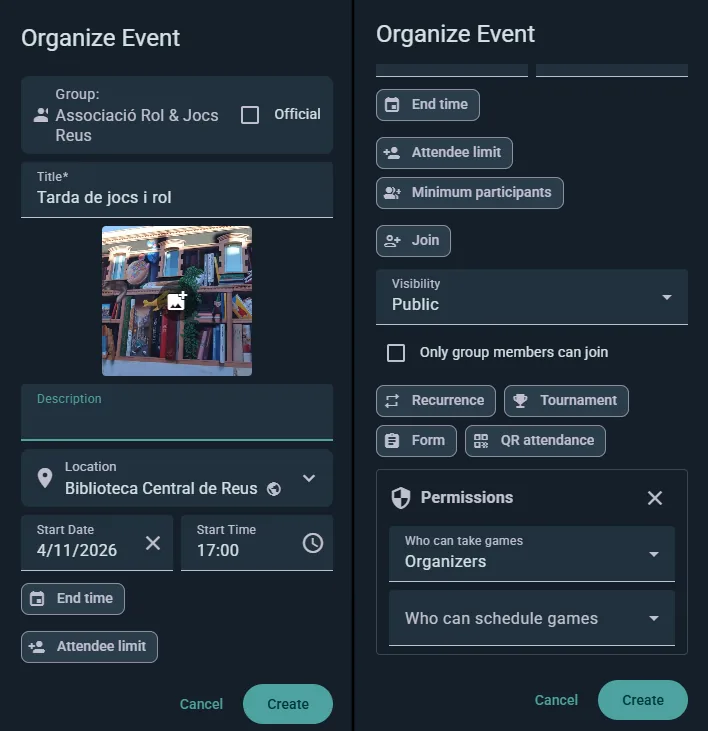
- Go to Explore → Events, tap the + button and choose New event. You can also do it from a group or organization page if you have permission.
- Enter a title, description, and upload images
- Set date, start time, timezone, and duration
- Set recurrence if it repeats (Player plan)
- Enter the venue name and address — Ludoya maps it automatically
- Choose visibility — and, if you like, allow access by link
- Set capacity and a minimum number of participants, so the page can show how many more are needed until the night is viable — and, on the Player plan, Cancel automatically if the minimum isn't reached (on a club's event, the club's plan)
- Optionally allow attendees to reserve spots for other people, cap how many each may reserve, and decide whether anonymous guests (a plus-one headcount) are allowed
Note that each person also controls this from their side: if someone has restricted who may invite them or reserve a seat for them, that preference wins over your event's settings. See Privacy & Visibility.
Not ready to publish? Save as draft, and the event stays hidden until you hit Publish.
Permissions
Three settings, each set to Anyone, Attendees, or Organizers:
- Who can take games — who may claim a copy from the games list
- Who can schedule games — who may add a table to the lineup
- Who can invite people — who may bring others along
Managing Attendees
- View who's going, maybe, invited, and reserved
- Invite specific people, reserve spots for them, or remove them
- Rename a guest or edit someone's guest count when plans change
- Mark as no-show after the event (and undo it) to track attendance reliability on player profiles
- Approve or decline requests to attend, when you've let non-members ask for a seat
- Ask the maybes whether they're coming: Ludoya asks them the day before anyway, and before an automatic cancellation, but the button asks them now. Each can answer Going or Can't go from the notification, and until they do, their row says Maybe · asked, no answer yet. Someone asked in the last 12 hours isn't asked again
- Your team: co-organizers who run the event with you (free), stand hosts with stands of their own inside it, helpers behind the desk and the people running each session. Everyone accepts before they join
- Drop-outs: untick Attendees can leave once signed up and a leave is kept on the list as a drop-out with its time, and you're told how close to the start it was. Handy for big events, where a seat freed an hour before the start is a seat nobody fills
- On External Sign-Ups events, these tools still work even though there's no public RSVP button — sign-ups happen off Ludoya, but you invite, reserve, remove, mark attendance, and scan QR codes the same way
Event Lifecycle
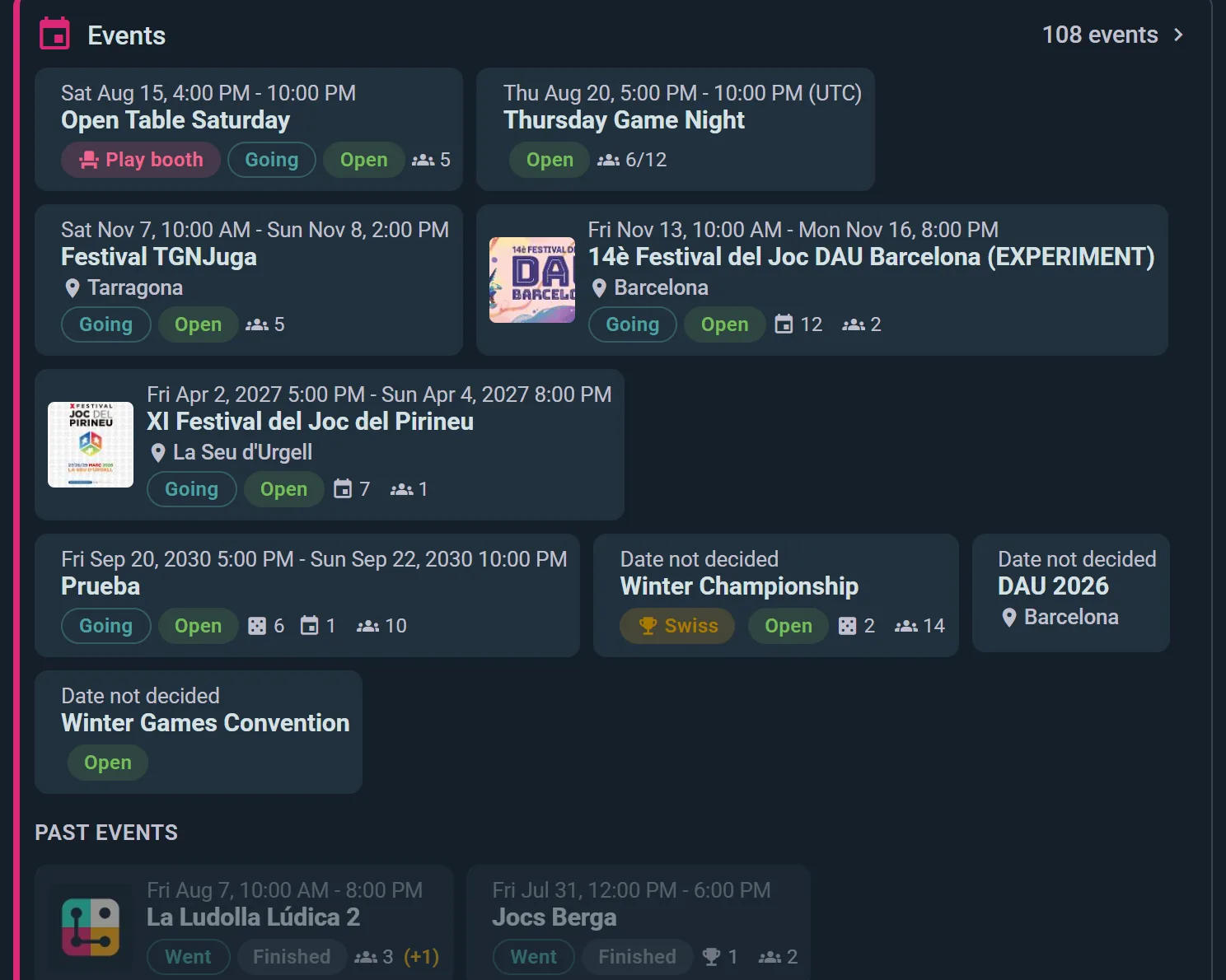
- Draft — a club's event written but not published yet. Only its team (you, your co-organizers, the club's admins and organizers, whoever runs a session) and anyone already signed up or invited can see it. A session sent back to draft keeps everyone signed up, so its card can say Draft next to Open or Full: one is who can see it, the other whether there's still a place. Draft cards also carry an amber stripe down their left edge, and while some of a programme is still to publish, its team gets a Drafts filter next to All and a line saying how many there are
- Open — live and accepting sign-ups
- Full — every spot taken
- In Progress — happening right now
- Closed — sign-ups paused, and you can reopen them
- Canceled — attendees are notified, and you can restore it
- Finished — it's happened; the final attendance stays on the page
On the Business plan, sign-ups can also open and close automatically at times you set — handy for early-bird windows, or for keeping registration shut until you've announced the event.
Editing an Event
Click Edit on your event page to update any details. Large changes notify attendees automatically.
To change only the description, tap the pencil next to Details on the event page (it's there even while the event has none): it's edited right there, without the event's form. A scheduled game is the exception: its game already says what it is about, so Details only shows once it has a description, and the first one goes in through Edit. Saving it doesn't notify attendees; to tell them, write an announcement. On a date of a recurring series you're asked whether the change is for this date only or for the following ones too.
Tournaments (Club plan)
A tournament is its own event type, hosted by a group. From the group page choose Organize Tournament, pick Swiss, mixer, or single/double elimination, and Ludoya builds each round's pairings, keeps live standings with configurable tiebreakers, and draws the bracket as matches resolve. Every pairing becomes a scheduled game your players report like any other.
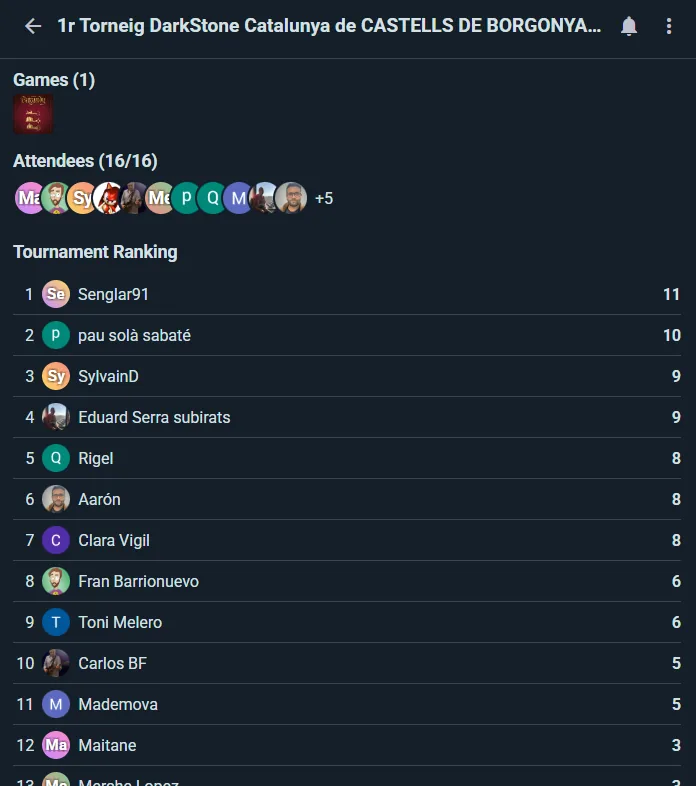
See Tournaments for the formats, tiebreakers, and how to run the day.
Raffles (Club plan)
Give away games and prizes to your attendees with a live, animated draw everyone can watch. Raffles are available on RSVP and External Sign-Ups events — not on No Sign-Ups events, which don't track attendance.
On a club's event, it's the host club's plan that unlocks it — your personal subscription doesn't cover an event you run under a club.
Setting Up a Raffle
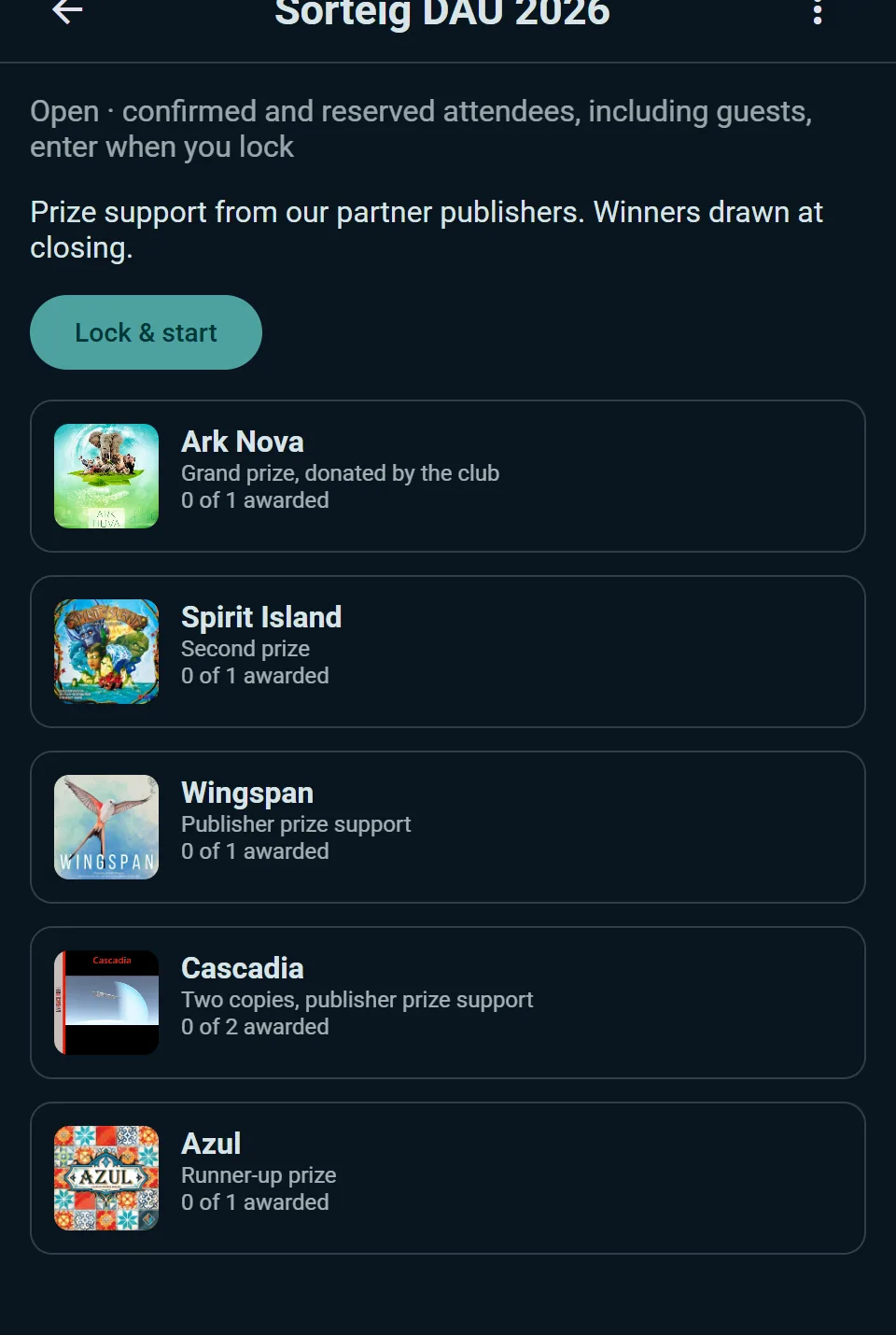
- Open your event and choose New raffle
- Optionally give it a title and description, then add your prizes — each can have more than one winner if you're giving away several copies
- Open the raffle so attendees can see what's up for grabs
- Lock and start when you're ready. Locking captures the entrants and freezes the prize list. Who enters decides who they are: confirmed attendees, adding reserved ones and guests if you like, or, on an event with a quiz trail, the players who found enough stops or got enough answers right
Drawing Winners
Draw one prize at a time, with a live animated reveal everyone in the room can watch. If a winner isn't there, void that draw and pick again. You can skip a prize, reset the whole thing and start over, or complete the raffle when you're done.
Results stay on the event afterwards, so people can always see who won what.
Tips
As an attendee: RSVP early, declare your games, show up, and be social in the event thread.
As a host: Write clear descriptions, schedule games before the event, engage attendees in the thread, mark attendance afterward, and thank your community.