
A Live Session is where the action happens — set up your game, play through rounds, log scores, and capture the moment with photos and comments. Everything syncs in real-time across all players' devices.
A live session and a quick-logged play are the same underlying play object. A live session is simply the interactive, multi-player way of filling it in while the game is happening — everything you log here ends up in your play history as a regular play.
One Table, One Screen
Tap Play, pick the game, and choose Now or Already played at the top of the dialog. Ludoya remembers which one you used last. Now opens the table; Already played takes you straight to the result of a game that already happened. The people from your last table today are already seated, along with its place and community, so the second game of the night takes two taps.
From then on, setup, play and scoring are one full-screen table with one bar: where you came from, what this is, and the one step forward (Start, Score, Finish). Everything a play can carry sits on the table as a chip: the kit and its setup steps, the AI assistant, the players, their order and the timer. Expansions, place, notes and who can see the play are one tap away, saved as you touch them.
Starting a scheduled game opens its table with the people who said they were coming. Several games running at once? The banner at the top of the app lists every play in progress, with what each is doing and for how long. A table nobody closed stops its clock on its own.
The Play Lifecycle
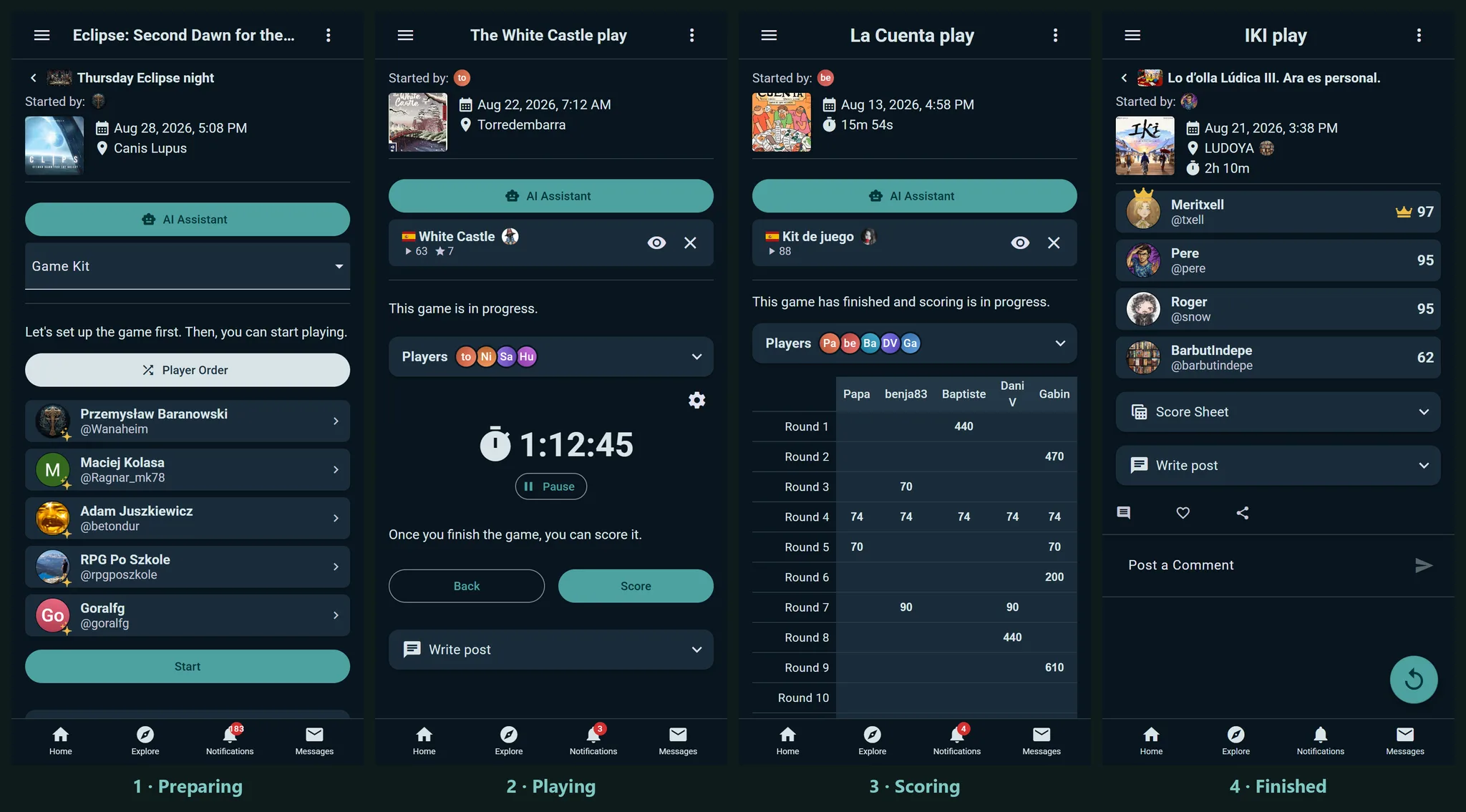
Every session moves through four stages:
Preparing
Get your game ready. Select a game from the catalog, add players, set player order, optionally create teams, and choose a Game Kit for structured scoring. Once you hit play, you're in the action.
Playing
Advance through turns and rounds using the timer and turn navigation. The app shows whose turn it is and how much time they have. Use the calculator for quick math, snap photos of the board, and jot down comments as memorable moments happen.
Scoring
Every player gets a column of the score sheet: type each score, and the Rank and the crown follow it. To set places by hand, tap a player's rank (#) and pick a place: swap it with whoever held it, or share it for a tie. A co-op table answers Victory or Defeat together, teams get a column each, and players who weren't in the running can be left out. With a Game Kit, the sheet has a row for each of the kit's categories and adds them up. You can finish without places when nobody remembers who won.
Finished
The session is done and saved to your play history automatically. Spotted a mistake right after finishing? Back to Scoring in the play's menu (⋮) reopens it for six hours after the game ends. Later than that, the play is still editable — just through the regular edit dialog rather than the live scoring screen.
Resume Saved Sessions
Accidentally closed the app mid-game? No problem. Your in-progress session is saved, and Play in progress at the top of the app takes you straight back to it — you'll pick up exactly where you left off.
Setting Up Your Session
Choose Your Game
Start by picking a game from the catalog. All your collection games are here, plus you can search for anything.
Add Players
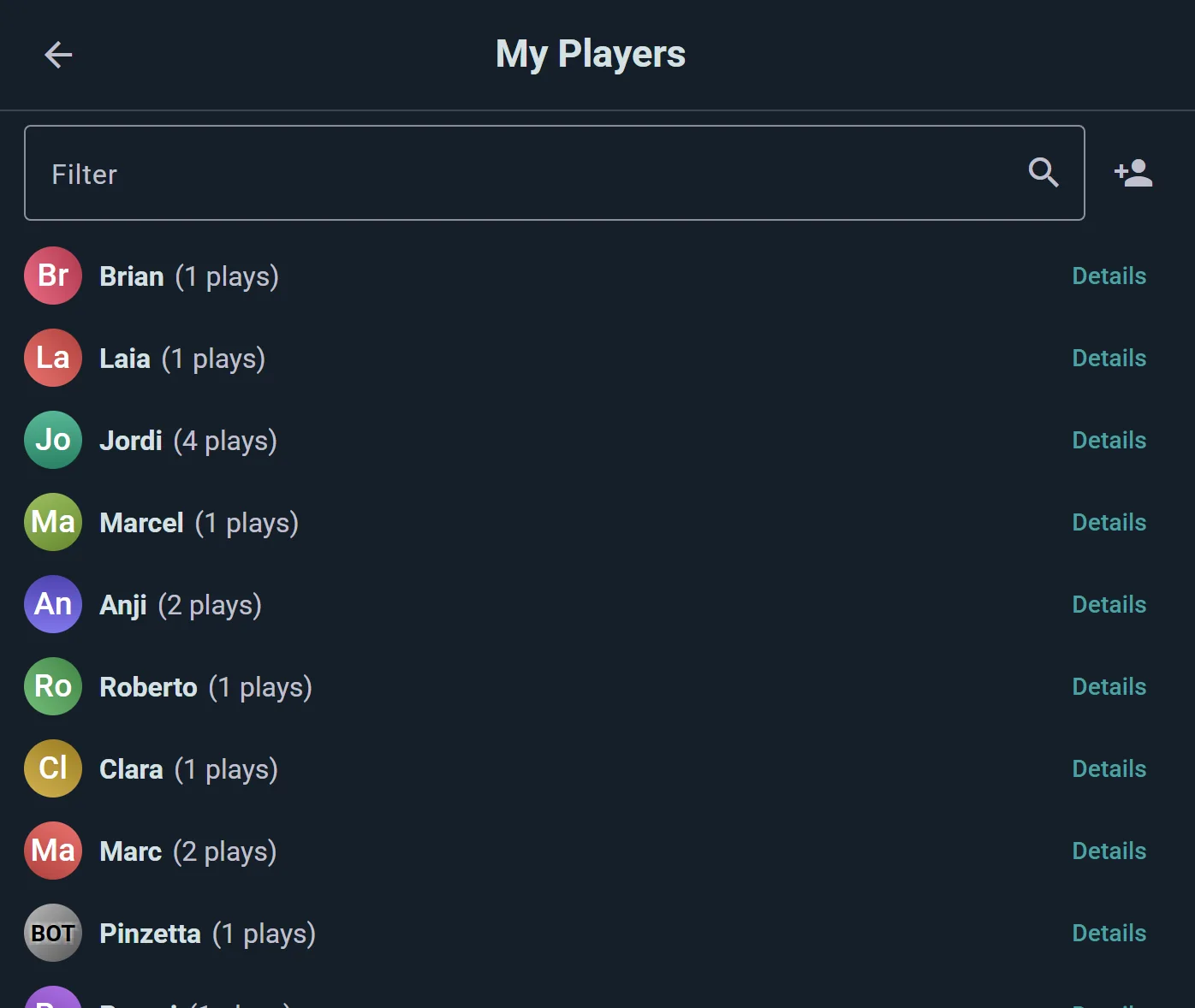
Search for Ludoya users by name, or type a name that isn't on Ludoya to create a player of your own — a lightweight entry you keep and reuse at every future game night. Those saved players live under Settings → Players, where you can merge duplicates, and later link one to a real Ludoya account when your friend finally signs up, handing them the whole shared history. In a hurry? Add anonymous placeholders and sort out who was who afterwards.
Everyone can have a favourite colour, one of the app's player colours: yours in Edit profile, a saved player's in Settings → Players (open the player and pick it). A saved player linked to an account without a colour of their own takes the account's. When you choose a play's players for a game whose Game Kit lists its player colours, and anyone at the table has a favourite, everybody without a colour gets one of the kit's colours on Save: favourites first, matched by hue, and two players who like the same colour never end up sharing it (whoever was added first keeps it, the other gets the free colour nearest to theirs). A colour already set, by hand or earlier, is never changed, and someone added later still gets a free one. A game without kit colours never gets seat colours handed out, since many have none to play (Codenames, Just One), but you can still pick one for each seat by hand, there or in the player's details. Starting a game from the table tools, your own seat takes the kit colour nearest your favourite. A play whose seats were never given colours (logged quickly, or before you picked one) still shows you in yours on its score sheet (unless someone earlier at the table already shows it), and your profile's header wears it whenever you haven't uploaded a cover photo.
Set Player Order
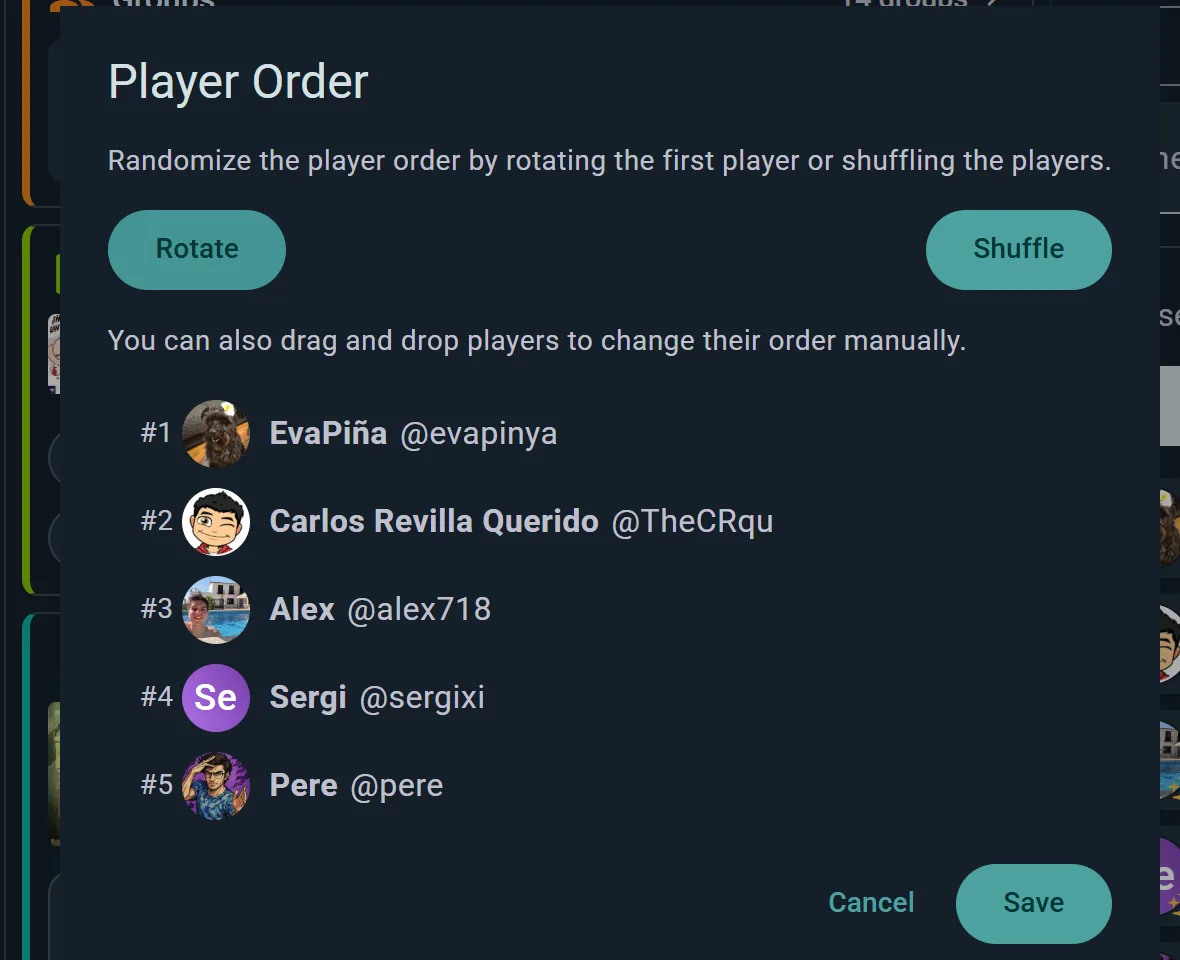
Choose how to organize turns:
- Manual: Drag players into your preferred order
- Shuffle: Randomize the whole order
- Rotate: Keep everyone's relative seating but pick a random player to go first (offered with three or more players)
- Touch: On a phone or tablet, everyone puts a finger on the screen at once and Ludoya picks one at random — the fairest way to settle who starts
Create Teams (Optional)
Group players into named teams, up to ten. Anyone who plays on no team, like a game master, goes under No team. Each team then scores as one.
Select a Game Kit
Pick a helper (or skip this step). Game Kits provide setup checklists, round steps, and structured score sheets tailored to your game. See Game Kits for details.
Timers
Timers keep the game flowing without slowing it down. Every session has a clock running for total play time, and the screen stays awake while it runs. Everything else is opt-in from the timer's menu: Timer settings, Set play time and Reset timers. You can set the timers up before you press Start, so a 45-minute limit counts from the first turn. Each switch in the settings says what it does, limits come as presets with a Custom option, and an alert sound can be switched off on every device at once.
Per-Player Timers
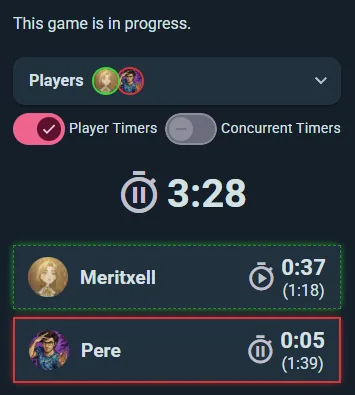
Turn on Player Timers and each player gets their own panel showing their current turn time and — in parentheses — their cumulative total across all of their turns so far. Tap a player's panel to hand the turn to them: their turn timer starts counting up, their total increments, and the previously-active player's timer pauses. The active player's panel is highlighted so everyone can see whose turn it is at a glance.
Player timers are off unless you switch them on, so a casual game stays uncluttered.
Concurrent Timers
Sitting inside Player Timers is Concurrent Timers, which lets several players' clocks run at once — for games with simultaneous action selection, real-time phases, or any moment when more than one person is on the clock.
Time Limits
Chess-clock territory, for when someone always takes forever:
- Whole play — a limit for the entire session
- Per player — how much total time each player gets
- Per turn — how long a single turn may last
Per-player and per-turn limits need Player Timers switched on. When someone runs past their limit, the app makes it obvious.
Switching Turns
- Tap any player's panel to hand them the turn directly — no need to cycle through the order
- Use the Previous and Next buttons at the bottom to step the active player back or forward in the current player order
- This also lets you back up if someone needs a redo, or skip ahead if a player finishes instantly
Scoring
Select a Game Kit for Structured Scoring
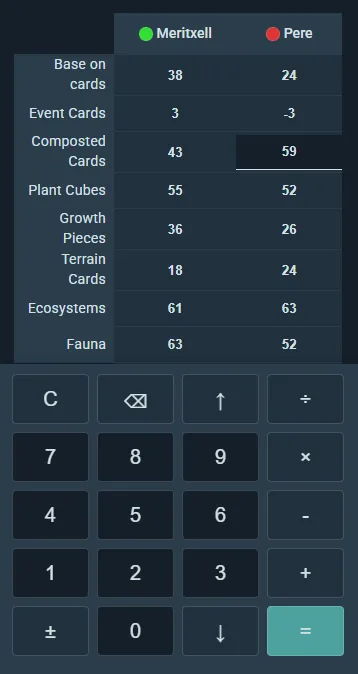
If you chose a Game Kit during setup, the score sheet appears with all its categories — just fill in the values. The app auto-totals each player's score.
Enter Per-Player Breakdowns
Type scores into each category for each player. Instant totals show at the bottom.
Mark Winners
Let the app pick the winner (highest or lowest score, depending on the game), or manually select who won if scores don't tell the whole story.
Team Scoring
With teams, each team gets one column of the sheet and one score, and its players share the team's place.
In-App Calculator
Tap into any score field and a keypad slides up from the bottom of the screen. It's a real calculator, not just a number pad — type 12+3×5 and it works it out properly, respecting order of operations, so you can enter a round the way you'd say it out loud rather than doing the arithmetic yourself.
The ↑ and ↓ keys move you between players without dismissing the keypad, which is what makes scoring a full table quick.
It reads scores the way people write them: decimals, with a point or a comma (7,5), negative numbers and brackets. The key beside 0 types the decimal separator of your language, = shows what the sum comes to before you move on, ± flips the whole result, and division rounds down, the way "a point per three coins" rules count.
It's not only for live sessions — the same keypad appears wherever you enter scores, including a play you're logging after the fact.
Capturing the Moment
Write a Post
Once the game is saved, Write post on the play: a few words ("Epic comeback by Jordan!") and photos of the board, the winning moment, your friends' reactions. It goes to your followers' feed with the play attached, and people like it and comment on it like any post. Edit post changes the text or the photos later.
Add Photos of the Table
On a saved play's page, below Write post, Add photos of the table opens your photos (or the camera, on a phone). What you pick goes into the play's post, ready to Publish, with a few words if you like. It works days later too, for a game you logged without photos. Once the play has some, Add more photos sits under them.
Share the Session
From the play's menu (⋮), Share gives you a link, a copied link, an image of the result, or a QR code. Anyone with the link can view the play.
Permissions & Edit History
Real-Time Concurrent Editing — Everyone at the Table
A live session is fundamentally multiplayer and real-time: the Ludoya users you seat at the start can edit the whole play, and all edits are broadcast live to everyone else's device. Two players can fill in their own columns of the score sheet at the same time, a third can tweak the turn timer, and a fourth can snap a photo — and everyone sees each change the instant it happens.
This is what makes live sessions shine for collaborative score sheet filling: instead of one person hunching over a tablet asking everyone for numbers, each player types in their own results on their own phone while the session stays in sync for the whole table. No refreshing, no "who's got the device?" bottleneck.
If you need tighter control, open a player and set their Play edit permissions: View only, Edit own score or Full access. Someone added once the play is under way can edit their own score.
Editing After the Session Ends
Plays remain editable even after the session is marked as finished and saved to play history. If you spot a wrong score or forget to mark a winner, you can go back and correct it later.
Edit History
Every change to a session — live or post-finish — is tracked. View History in the play's menu (⋮) shows who changed what and when, so nothing changes behind anyone's back. That keeps scores trustworthy for statistics, player profiles, and group leaderboards while still allowing honest fixes.